<?xml version="1.0" encoding="utf-8"?><feed xmlns="http://www.w3.org/2005/Atom" ><generator uri="https://jekyllrb.com/" version="4.4.1">Jekyll</generator><link href="https://thisroman.dev/feed.xml" rel="self" type="application/atom+xml" /><link href="https://thisroman.dev/" rel="alternate" type="text/html" /><updated>2026-06-10T19:13:05+00:00</updated><id>https://thisroman.dev/feed.xml</id><title type="html">thisroman.dev</title><subtitle>Hey folks, I post some articles about technology and tricks &amp; tips how to do some stuff in dev environment. 🚀&lt;br/&gt; My CV page is [here](https://cv.thisroman.dev){:target=&quot;_blank&quot;}.
</subtitle><author><name>Roman Pinchuk</name><email>hi@thisroman.dev</email><uri>https://thisroman.dev</uri></author><entry><title type="html">Docker Engine v29: Fixing “API Version Mismatch” Error</title><link href="https://thisroman.dev/2025/11/28/docker-engine-29-api-version-fix/" rel="alternate" type="text/html" title="Docker Engine v29: Fixing “API Version Mismatch” Error" /><published>2025-11-28T00:00:00+00:00</published><updated>2025-11-28T00:00:00+00:00</updated><id>https://thisroman.dev/2025/11/28/docker-engine-29-api-version-fix</id><content type="html" xml:base="https://thisroman.dev/2025/11/28/docker-engine-29-api-version-fix/"><![CDATA[<p><img src="/assets/posts/2025-11-28-docker-engine-29-api-version-fix/logo-docker.svg" alt="Docker Logo" class="modal" /></p>

<p>If you’ve recently upgraded to <strong>Docker Engine - Community Version 29</strong>, you might have hit a frustrating API version mismatch error.</p>

<p>Specifically, you might see an error indicating that a minimum API version <code class="language-plaintext highlighter-rouge">&gt;= 1.44</code> is required. This often happens when your tools or CI/CD agents are trying to communicate with the updated daemon using an older API protocol, and the new Docker default policies are too strict.</p>

<p>As an Automation Engineer, I encounter this when legacy scripts or older <code class="language-plaintext highlighter-rouge">docker-compose</code> binaries clash with the bleeding-edge runtime. We need a way to bridge that gap without downgrading the entire engine.</p>

<p>Here is the quick fix to force Docker to accept a lower minimum API version.</p>

<h2 id="the-fix-configure-daemonjson">The Fix: Configure <code class="language-plaintext highlighter-rouge">daemon.json</code></h2>

<p>The solution is to explicitly tell the Docker daemon to support an older API version. We do this by modifying (or creating) the <code class="language-plaintext highlighter-rouge">/etc/docker/daemon.json</code> file.</p>

<p>We are going to set the <code class="language-plaintext highlighter-rouge">min-api-version</code> to <code class="language-plaintext highlighter-rouge">1.32</code>. This is a robust baseline that supports most tools while still allowing the daemon to run its latest core.</p>

<h3 id="step-1-edit-the-configuration">Step 1: Edit the Configuration</h3>

<p>Open the daemon configuration file in your text editor:</p>

<div class="language-bash highlighter-rouge"><div class="highlight"><pre class="highlight"><code><span class="nb">sudo </span>nano /etc/docker/daemon.json
</code></pre></div></div>

<p>Add (or merge) the following configuration object:</p>

<div class="language-json highlighter-rouge"><div class="highlight"><pre class="highlight"><code><span class="p">{</span><span class="w">
  </span><span class="nl">"min-api-version"</span><span class="p">:</span><span class="w"> </span><span class="s2">"1.32"</span><span class="w">
</span><span class="p">}</span><span class="w">
</span></code></pre></div></div>

<p><strong>Warning:</strong> If your <code class="language-plaintext highlighter-rouge">daemon.json</code> already contains other settings (like insecure registries or log drivers), make sure you append this key correctly to the existing JSON object. Invalid JSON will prevent Docker from starting.</p>

<h3 id="step-2-restart-docker-service">Step 2: Restart Docker Service</h3>

<p>Configuration changes only apply after a service restart. Reload the daemon:</p>

<div class="language-bash highlighter-rouge"><div class="highlight"><pre class="highlight"><code><span class="nb">sudo </span>systemctl restart docker
</code></pre></div></div>

<h3 id="step-3-verify-the-fix">Step 3: Verify the Fix</h3>

<p>Ensure the service is back up and verify the API negotiation:</p>

<div class="language-bash highlighter-rouge"><div class="highlight"><pre class="highlight"><code>docker version
</code></pre></div></div>

<p>You should now see that the daemon is willing to speak with older clients.</p>

<h2 id="why-this-works">Why this works</h2>

<p>Docker v29 pushes the envelope on API standards. By default, it may deprecate older API versions to encourage security and feature parity. However, in the real world of enterprise automation, we don’t always control the client version (e.g., a Jenkins plugin or a vendor-locked utility).</p>

<p>Setting <code class="language-plaintext highlighter-rouge">"min-api-version": "1.32"</code> effectively lowers the “minimum height requirement” for this ride, letting your existing automation suite continue to function with the modern engine.</p>

<hr />

<p><em>Keep automating.</em> 🫡</p>]]></content><author><name>Roman Pinchuk</name><email>hi@thisroman.dev</email><uri>https://thisroman.dev</uri></author><category term="docker" /><category term="dev-ops" /><category term="linux" /><category term="troubleshooting" /><summary type="html"><![CDATA[A quick fix for the "API version >= 1.44" requirement in Docker v29.]]></summary></entry><entry><title type="html">How to Use crontab Like a Pro</title><link href="https://thisroman.dev/2025/04/27/how-to-use-crontab-like-pro/" rel="alternate" type="text/html" title="How to Use crontab Like a Pro" /><published>2025-04-27T00:00:00+00:00</published><updated>2025-04-27T00:00:00+00:00</updated><id>https://thisroman.dev/2025/04/27/how-to-use-crontab-like-pro</id><content type="html" xml:base="https://thisroman.dev/2025/04/27/how-to-use-crontab-like-pro/"><![CDATA[<p><img src="/assets/posts/2025-04-27-how-to-use-crontab-like-pro/crontab.webp" alt="image" class="modal" /></p>

<p>If you ever needed to run a command automatically at a certain time on Linux, crontab is what you’re looking for. It’s simple once you get the pattern down.</p>

<p>Here’s everything you need to know to start — and actually understand what you’re doing.</p>

<h2 id="what-iscrontab">What is crontab?</h2>

<p>In its simplest form, <strong>crontab</strong> is a <strong>scheduler</strong> on Unix-based systems that automates tasks.</p>

<p>It executes commands or scripts at specific intervals, which you define in a <strong>crontab file</strong>. This is the file where cron jobs are set, and it’s the tool behind most of the scheduled processes you interact with daily.</p>

<p>You can think of cron as your <strong>personal assistant</strong> — once you set the schedule, cron takes over and makes sure everything happens on time, without further intervention from you. It runs tasks at the minute level (every 1 minute, every hour, every day, etc.), so it’s great for repetitive tasks.</p>

<h2 id="crontab-syntax-explained">Crontab Syntax Explained</h2>

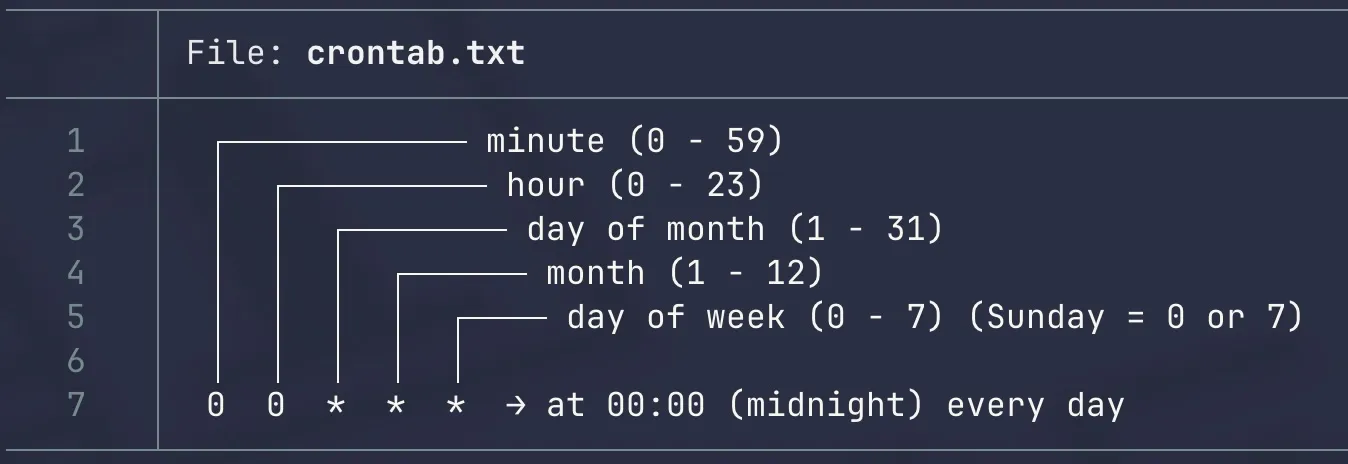
<p>Every cron job follows a schedule format and is paired with a command to execute. The syntax might seem a bit tricky at first, but once you get the hang of it, it becomes second nature. Here’s the basic layout:</p>

<div class="language-bash highlighter-rouge"><div class="highlight"><pre class="highlight"><code>┌───────────── minute <span class="o">(</span>0–59<span class="o">)</span>
│ ┌───────────── hour <span class="o">(</span>0–23<span class="o">)</span>
│ │ ┌───────────── day of month <span class="o">(</span>1–31<span class="o">)</span>
│ │ │ ┌───────────── month <span class="o">(</span>1–12<span class="o">)</span>
│ │ │ │ ┌───────────── day of week <span class="o">(</span>0–7<span class="o">)</span> <span class="o">(</span>Sunday <span class="o">=</span> 0 or 7<span class="o">)</span>
│ │ │ │ │
│ │ │ │ │
<span class="k">*</span> <span class="k">*</span> <span class="k">*</span> <span class="k">*</span> <span class="k">*</span> command_to_execute
</code></pre></div></div>

<p><strong>Explanation of Each Field:</strong></p>

<ol>
  <li><strong>Minute (0-59)</strong> – When during the hour the command should run (e.g., 0 means at the start of the hour).</li>
  <li><strong>Hour (0-23)</strong> – The hour at which the command should run (e.g., 14 means 2 PM).</li>
  <li><strong>Day of Month (1-31)</strong> – The day of the month to execute the command (e.g., 15 for the 15th).</li>
  <li><strong>Month (1-12)</strong> – The month of the year when the command should execute (e.g., 5 for May).</li>
  <li><strong>Day of Week (0-7)</strong> – The day of the week (0 or 7 = Sunday, 1 = Monday, etc.).</li>
</ol>

<h2 id="quick-examples">Quick Examples</h2>

<p>Let’s break down some examples of crontab lines for clarity:</p>

<table>
  <thead>
    <tr>
      <th><strong>Crontab Line</strong></th>
      <th><strong>Meaning</strong></th>
    </tr>
  </thead>
  <tbody>
    <tr>
      <td>0 0 * * *</td>
      <td>Run every day at midnight (00:00).</td>
    </tr>
    <tr>
      <td>30 6 * * *</td>
      <td>Run every day at 6:30 AM.</td>
    </tr>
    <tr>
      <td>0 */2 * * *</td>
      <td>Run every 2 hours.</td>
    </tr>
    <tr>
      <td>0 0 1 * *</td>
      <td>Run once a month on the 1st day at midnight.</td>
    </tr>
    <tr>
      <td>0 0 * * 0</td>
      <td>Run every Sunday at midnight.</td>
    </tr>
  </tbody>
</table>

<h2 id="special-crontab-macros">Special Crontab Macros</h2>

<p>Sometimes, you want to avoid remembering the exact numbers. Cron provides some <strong>convenient shortcuts</strong> you can use instead of the typical numbers. These are called <strong>macros</strong>, and they make your crontab much more readable:</p>

<table>
  <thead>
    <tr>
      <th><strong>Macro</strong></th>
      <th><strong>Equivalent</strong></th>
      <th><strong>Meaning</strong></th>
    </tr>
  </thead>
  <tbody>
    <tr>
      <td>@reboot</td>
      <td>—</td>
      <td>Run once at startup (every reboot).</td>
    </tr>
    <tr>
      <td>@yearly</td>
      <td>0 0 1 1 *</td>
      <td>Run once a year (January 1st).</td>
    </tr>
    <tr>
      <td>@annually</td>
      <td>0 0 1 1 *</td>
      <td>Alias for @yearly.</td>
    </tr>
    <tr>
      <td>@monthly</td>
      <td>0 0 1 * *</td>
      <td>Run once a month (on the 1st).</td>
    </tr>
    <tr>
      <td>@weekly</td>
      <td>0 0 * * 0</td>
      <td>Run once a week (Sunday).</td>
    </tr>
    <tr>
      <td>@daily</td>
      <td>0 0 * * *</td>
      <td>Run once a day (at midnight).</td>
    </tr>
    <tr>
      <td>@midnight</td>
      <td>0 0 * * *</td>
      <td>Same as @daily.</td>
    </tr>
    <tr>
      <td>@hourly</td>
      <td>0 * * * *</td>
      <td>Run every hour.</td>
    </tr>
  </tbody>
</table>

<p>You can also use these macros in your crontab file for simplicity.
No need to manually type out all those numbers!</p>

<h2 id="crontab-types-which-one-are-you-editing">Crontab Types: Which One Are You Editing?</h2>

<p>There are different <strong>types of crontabs</strong> that you may be working with:</p>

<ul>
  <li><strong>User crontab</strong>: This is where <strong>your user</strong> sets their own cron jobs. You can access it by running the command:
    <div class="language-bash highlighter-rouge"><div class="highlight"><pre class="highlight"><code>  crontab <span class="nt">-e</span>
</code></pre></div>    </div>
  </li>
  <li><strong>System crontab</strong>: This is a system-wide crontab located at /etc/crontab, and it’s where cron jobs that affect the whole system are configured. It requires the <strong>user</strong> field, which specifies <strong>which user</strong> the job should run as. You would edit this file with:
    <div class="language-bash highlighter-rouge"><div class="highlight"><pre class="highlight"><code>  <span class="nb">sudo </span>nano /etc/crontab
</code></pre></div>    </div>
  </li>
</ul>

<p>Example of a system crontab entry:</p>

<div class="language-bash highlighter-rouge"><div class="highlight"><pre class="highlight"><code><span class="c"># m h dom mon dow user  command</span>
0 0 <span class="k">*</span> <span class="k">*</span> <span class="k">*</span> root /path/to/script.sh
</code></pre></div></div>

<h2 id="the-role-of-mailto-in-crontab">The Role of MAILTO in Crontab</h2>

<p>By default, when a cron job produces any output (whether it’s a success message or an error), <strong>cron tries to send an email</strong> with that output. The <strong>MAILTO</strong> variable controls where this output goes.</p>

<p>Here’s how it works:</p>

<ul>
  <li><strong>MAILTO=“your@email.com”</strong>: Cron will send all output (standard and error) to the specified email address.
  Example:
    <div class="language-bash highlighter-rouge"><div class="highlight"><pre class="highlight"><code>  <span class="nv">MAILTO</span><span class="o">=</span><span class="s2">"your@email.com"</span>
  0 0 <span class="k">*</span> <span class="k">*</span> <span class="k">*</span> /your/script.sh
</code></pre></div>    </div>
    <p>With this, you’ll receive an email every time the script produces any output.</p>
  </li>
  <li><strong>MAILTO=””</strong>: This prevents cron from sending emails. If your job produces any output (even errors), cron will silently ignore it.
  Example:
    <div class="language-bash highlighter-rouge"><div class="highlight"><pre class="highlight"><code>  <span class="nv">MAILTO</span><span class="o">=</span><span class="s2">""</span>
  0 0 <span class="k">*</span> <span class="k">*</span> <span class="k">*</span> /your/script.sh
</code></pre></div>    </div>
    <p>This can be helpful if you don’t want to clutter your inbox with cron job outputs.</p>
  </li>
</ul>

<h2 id="best-practices-for-cron-jobs">Best Practices for Cron Jobs</h2>

<p>While cron jobs are pretty straightforward, here are some <strong>best practices</strong> to keep your crontab organized and efficient:</p>

<ol>
  <li><strong>Always set MAILTO=”“</strong> if you don’t need emails. This prevents unnecessary notifications.</li>
  <li><strong>Be explicit about paths</strong>. Cron jobs run with a minimal environment. Always provide full paths to the commands you want to run, and even the environment variables.</li>
  <li><strong>Test your commands manually</strong> before adding them to crontab to ensure they work properly.</li>
  <li><strong>Use cron’s macros</strong> for simplicity and readability.</li>
</ol>

<h2 id="real-world-example-controlling-an-led">Real-World Example: Controlling an LED</h2>

<p>I have a small SBC Server and want to automate its LED by cron job.</p>

<p>I added two cron jobs to the user’s list:</p>

<div class="language-bash highlighter-rouge"><div class="highlight"><pre class="highlight"><code>0 0 <span class="k">*</span> <span class="k">*</span> <span class="k">*</span> /bin/echo none <span class="o">&gt;</span> /sys/class/leds/green_led/trigger
30 6 <span class="k">*</span> <span class="k">*</span> <span class="k">*</span> /bin/echo heartbeat <span class="o">&gt;</span> /sys/class/leds/green_led/trigger
</code></pre></div></div>

<p>I get the following message:</p>

<div class="language-bash highlighter-rouge"><div class="highlight"><pre class="highlight"><code>crontab: installing new crontab
</code></pre></div></div>

<p>This will turn the LED off at midnight and set it to heartbeat mode at 6:30 AM.
Simple and effective.</p>

<h2 id="final-thoughts">Final Thoughts</h2>

<p><strong>Crontab</strong> is the heartbeat of automated task scheduling on Linux. It gives you the power to automate everything from system maintenance to custom scripts.</p>

<p>By understanding its format, macros, and output control options, you can easily set up <strong>reliable cron jobs</strong> that work like clockwork.</p>

<p>Cron is the silent worker of your system — and with these tips, you’ll be able to make it work even harder for you.</p>

<h2 id="tldr-for-crontab-command">TL;DR for crontab command</h2>

<p><code class="language-plaintext highlighter-rouge">crontab</code></p>

<p>Schedule cron jobs to run on a time interval for the current user.
More information: <a href="https://crontab.guru/">https://crontab.guru/</a>.</p>

<p>Edit the crontab file for the current user:</p>

<div class="language-plaintext highlighter-rouge"><div class="highlight"><pre class="highlight"><code>crontab -e
</code></pre></div></div>

<p>Edit the crontab file for a specific user:</p>

<div class="language-plaintext highlighter-rouge"><div class="highlight"><pre class="highlight"><code>sudo crontab -e -u user
</code></pre></div></div>

<p>Replace the current crontab with the contents of the given file:</p>

<div class="language-plaintext highlighter-rouge"><div class="highlight"><pre class="highlight"><code>crontab path/to/file
</code></pre></div></div>

<p>View a list of existing cron jobs for current user:</p>

<div class="language-plaintext highlighter-rouge"><div class="highlight"><pre class="highlight"><code>crontab -l
</code></pre></div></div>

<p>Remove all cron jobs for the current user:</p>

<div class="language-plaintext highlighter-rouge"><div class="highlight"><pre class="highlight"><code>crontab -r
</code></pre></div></div>

<p>Sample job which runs at 10:00 every day (* means any value):</p>

<div class="language-plaintext highlighter-rouge"><div class="highlight"><pre class="highlight"><code>0 10 * * * command_to_execute
</code></pre></div></div>

<p>Sample crontab entry, which runs a command every 10 minutes:</p>

<div class="language-plaintext highlighter-rouge"><div class="highlight"><pre class="highlight"><code>*/10 * * * * command_to_execute
</code></pre></div></div>

<p>Sample crontab entry, which runs a certain script at 02:30 every Friday:</p>

<div class="language-plaintext highlighter-rouge"><div class="highlight"><pre class="highlight"><code>30 2 * * Fri /absolute/path/to/script.sh
</code></pre></div></div>]]></content><author><name>Roman Pinchuk</name><email>hi@thisroman.dev</email><uri>https://thisroman.dev</uri></author><category term="dev-ops" /><summary type="html"><![CDATA[the ultimate crontab overview (with real-world examples)]]></summary></entry><entry><title type="html">DeepSeek 🐳 on ur local host right now!</title><link href="https://thisroman.dev/2025/01/30/deepseek-on-ur-local-host-right-now/" rel="alternate" type="text/html" title="DeepSeek 🐳 on ur local host right now!" /><published>2025-01-30T00:00:00+00:00</published><updated>2025-01-30T00:00:00+00:00</updated><id>https://thisroman.dev/2025/01/30/deepseek-on-ur-local-host-right-now</id><content type="html" xml:base="https://thisroman.dev/2025/01/30/deepseek-on-ur-local-host-right-now/"><![CDATA[<p><img src="/assets/posts/2025-01-30-deepseek-on-ur-local-host-right-now/deepseek.webp" alt="image" class="modal" /></p>

<p>Hello, folks! 🙋🏻‍♂️</p>

<p>Today, I want to show you how to run Blue Whale on your local computer and make its web UI accessible over the internet. I’ll guide you through the setup step by step, so stay tuned!</p>

<p>What will be need:</p>

<ul>
  <li>MacBook Air 13 M3 16GB RAM 512GB Disk (In my case)</li>
  <li>Docker Desktop or Docker CE w/ Compose ability</li>
  <li>Free Time</li>
  <li>And as a bonus is registered Domain Name on Cloudflare for remote access for ur blue whale 🐳</li>
</ul>

<h2 id="docker-compose-file">Docker Compose File</h2>

<p>Let’s open a Terminal (I do prefer iTerm 2) and build some awesome <code class="language-plaintext highlighter-rouge">compose.yml</code>. I recommend to make a new folder for it before:</p>

<div class="language-bash highlighter-rouge"><div class="highlight"><pre class="highlight"><code><span class="nb">mkdir </span>ollama-open-web-ui
</code></pre></div></div>

<p>We need two services and therefore:</p>

<div class="language-yaml highlighter-rouge"><div class="highlight"><pre class="highlight"><code><span class="na">services</span><span class="pi">:</span>
  <span class="na">ollama</span><span class="pi">:</span>
    <span class="na">image</span><span class="pi">:</span> <span class="s">ollama/ollama:latest</span>
    <span class="na">container_name</span><span class="pi">:</span> <span class="s">ollama</span>
    <span class="na">ports</span><span class="pi">:</span>
      <span class="pi">-</span> <span class="s2">"</span><span class="s">11434:11434"</span>
    <span class="na">volumes</span><span class="pi">:</span>
      <span class="pi">-</span> <span class="s">ollama_data:/root/.ollama</span>
    <span class="na">restart</span><span class="pi">:</span> <span class="s">unless-stopped</span>
    <span class="na">healthcheck</span><span class="pi">:</span>
      <span class="na">test</span><span class="pi">:</span> <span class="pi">[</span><span class="s2">"</span><span class="s">CMD"</span><span class="pi">,</span> <span class="s2">"</span><span class="s">ollama"</span><span class="pi">,</span> <span class="s2">"</span><span class="s">list"</span><span class="pi">]</span>
      <span class="na">interval</span><span class="pi">:</span> <span class="s">30s</span>
      <span class="na">timeout</span><span class="pi">:</span> <span class="s">10s</span>
      <span class="na">retries</span><span class="pi">:</span> <span class="m">3</span>
      <span class="na">start_period</span><span class="pi">:</span> <span class="s">10s</span>

  <span class="na">open-webui</span><span class="pi">:</span>
    <span class="na">image</span><span class="pi">:</span> <span class="s">ghcr.io/open-webui/open-webui:main</span>
    <span class="na">container_name</span><span class="pi">:</span> <span class="s">open-webui</span>
    <span class="na">ports</span><span class="pi">:</span>
      <span class="pi">-</span> <span class="s2">"</span><span class="s">3000:8080"</span>
    <span class="na">environment</span><span class="pi">:</span>
      <span class="pi">-</span> <span class="s">OLLAMA_BASE_URL=http://ollama:11434</span>
    <span class="na">depends_on</span><span class="pi">:</span>
      <span class="na">ollama</span><span class="pi">:</span>
        <span class="na">condition</span><span class="pi">:</span> <span class="s">service_healthy</span>
    <span class="na">volumes</span><span class="pi">:</span>
      <span class="pi">-</span> <span class="s">open_webui_data:/app/backend/data</span>
    <span class="na">restart</span><span class="pi">:</span> <span class="s">unless-stopped</span>

<span class="na">volumes</span><span class="pi">:</span>
  <span class="na">ollama_data</span><span class="pi">:</span>
  <span class="na">open_webui_data</span><span class="pi">:</span>
  
</code></pre></div></div>

<p>I added health check for <code class="language-plaintext highlighter-rouge">ollama</code> service and <code class="language-plaintext highlighter-rouge">open-webui</code> depends on that check.</p>

<p>So, we have compose file. It’s time to run:</p>

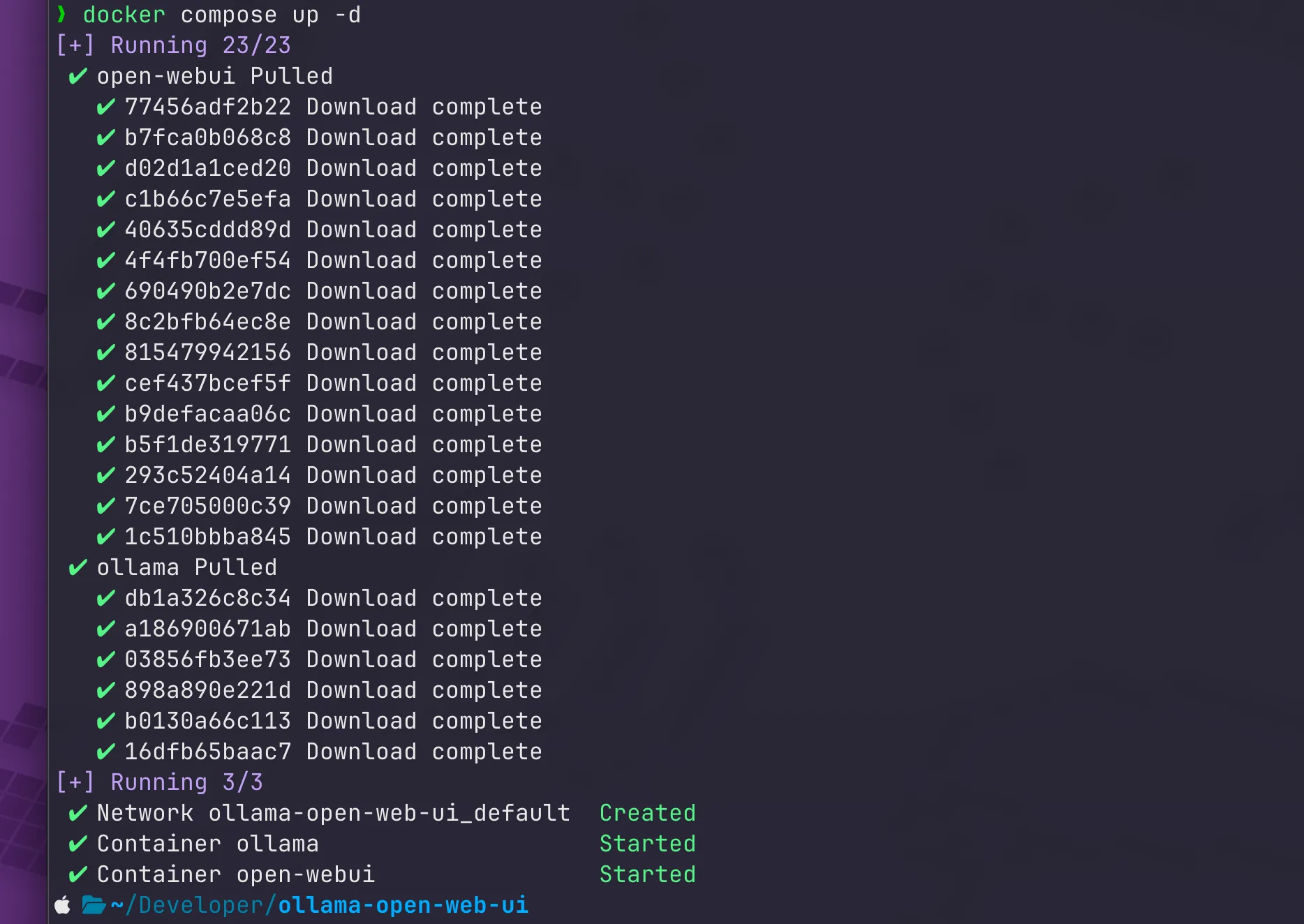
<div class="language-bash highlighter-rouge"><div class="highlight"><pre class="highlight"><code>docker compose up <span class="nt">-d</span>
</code></pre></div></div>

<p>Docker’ll see that images aren’t downloaded and try to obtain them (<code class="language-plaintext highlighter-rouge">ollama</code> weighs 7.29GB and <code class="language-plaintext highlighter-rouge">open-webui</code> weighs 5.27GB)</p>

<p><img src="/assets/posts/2025-01-30-deepseek-on-ur-local-host-right-now/pic10.webp" alt="image" class="modal" /></p>

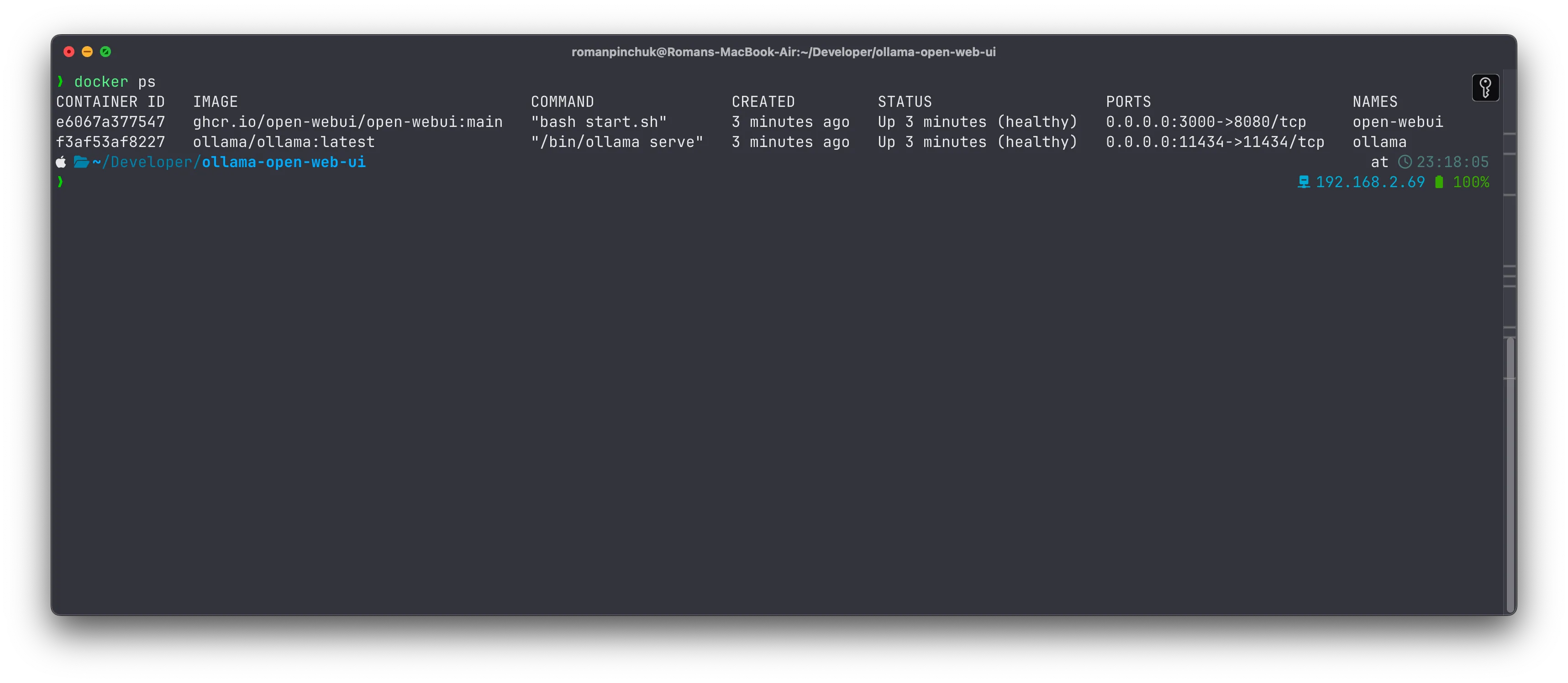
<p>Let’s check if them are healthy guys and running:</p>

<div class="language-bash highlighter-rouge"><div class="highlight"><pre class="highlight"><code>docker ps
</code></pre></div></div>

<p><img src="/assets/posts/2025-01-30-deepseek-on-ur-local-host-right-now/pic1.webp" alt="image" class="modal" /></p>

<h2 id="web-ui-configuration">Web UI Configuration</h2>

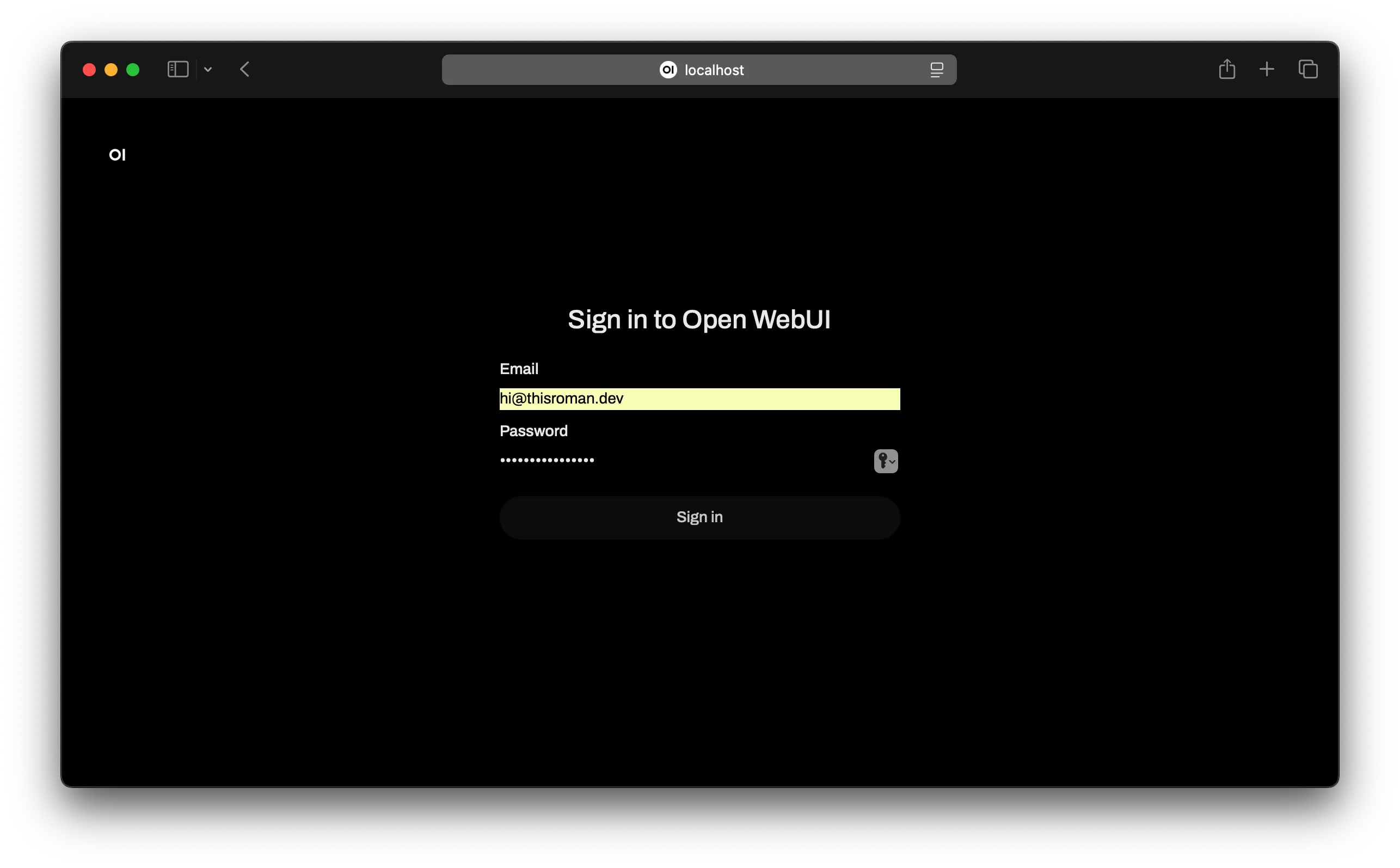
<p>Ok, everything is ok. Now, try to open web ui by following <a href="http://localhost:3000"><code class="language-plaintext highlighter-rouge">localhost:3000</code></a> address:</p>

<p><img src="/assets/posts/2025-01-30-deepseek-on-ur-local-host-right-now/pic2.webp" alt="image" class="modal" /></p>

<p>Use your email and fill some password for initial setup. That user is an admin.</p>

<p>After that need to check connection to <code class="language-plaintext highlighter-rouge">ollama</code>. Click on an avatar (right-upper corner) → Admin Panel → Settings → Connections.</p>

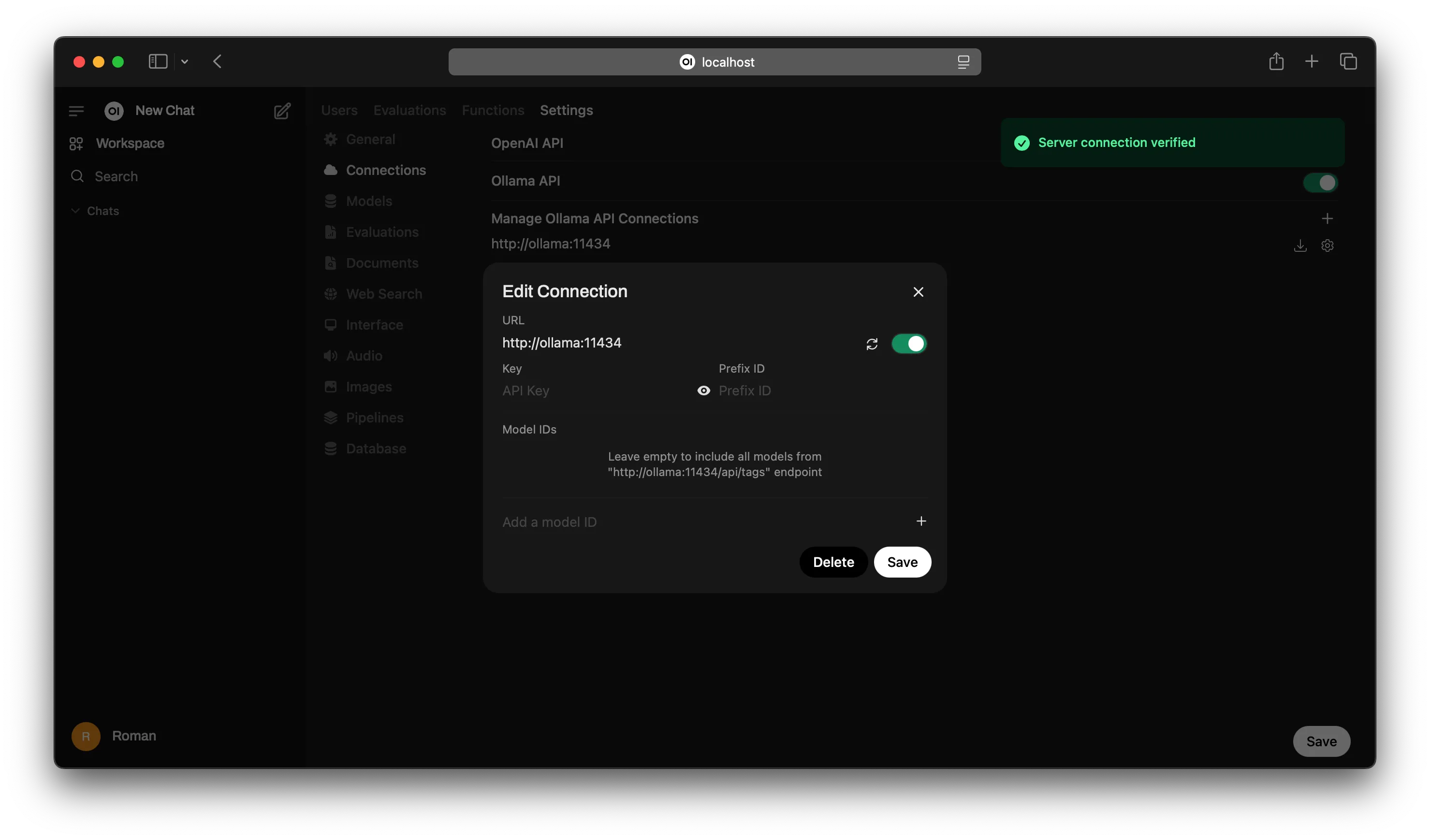
<p>In a case if you don’t use <del>Closed</del>OpenAI API, I suggest to disable this feature. Ollama API should be pointed to <a href="http://ollama:11434/"><code class="language-plaintext highlighter-rouge">http://ollama:11434</code></a> because we defined in <code class="language-plaintext highlighter-rouge">compose.yml</code> file. Then, click on the gear icon → and click on refresh icon. We should see that connection is verified as shown below.</p>

<p><img src="/assets/posts/2025-01-30-deepseek-on-ur-local-host-right-now/pic3.webp" alt="image" class="modal" /></p>

<p>Also, I turned on a web searching using DuckDuckGo Search Engine. To enabling, open Admin Panel → Settings → Web Search → Enable Web Search → Select <code class="language-plaintext highlighter-rouge">duckduckgo</code> in Web Search Engine → Save button at the bottom of the page.</p>

<h2 id="ollama-model-pulling">Ollama Model Pulling</h2>

<p>So, it’s time to pull the DeepSeek R1 model into the ollama. In my case I use a distilled model with 1.5b parameters but there’re different options until 671b. You can check this out here https://ollama.com/library/deepseek-r1:1.5b.</p>

<p>To pull the selected model, need to do so:</p>

<div class="language-bash highlighter-rouge"><div class="highlight"><pre class="highlight"><code>docker <span class="nb">exec</span> <span class="nt">-it</span> ollama ollama pull deepseek-r1:1.5b
</code></pre></div></div>

<p>It weighs about 1.1GB</p>

<p><img src="/assets/posts/2025-01-30-deepseek-on-ur-local-host-right-now/pic4.webp" alt="image" class="modal" /></p>

<p>Return to UI and refresh again to a model updating and maybe refresh the page.</p>

<h2 id="chatting-with-model">Chatting With Model</h2>

<p>Try to open a new chat and see <strong><code class="language-plaintext highlighter-rouge">deepseek-r1:1.5b</code></strong> that means it works like a charm.</p>

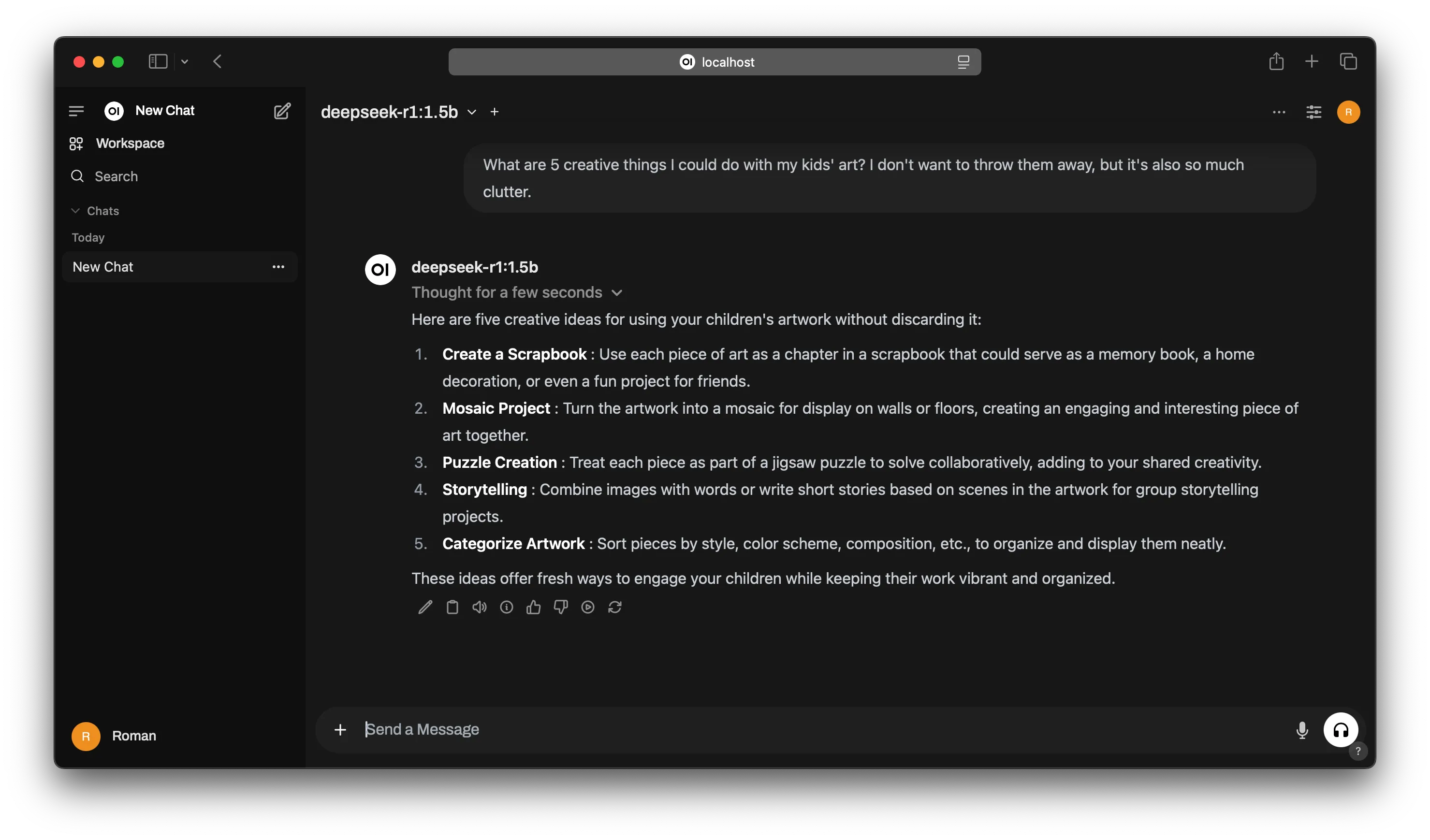
<p>Type something or select from examples to see answer from AI-ed blue whale.</p>

<p>Ta-da, your own self-hosted chatgpt-like AI-ed consultant answered you!</p>

<p><img src="/assets/posts/2025-01-30-deepseek-on-ur-local-host-right-now/pic5.webp" alt="image" class="modal" /></p>

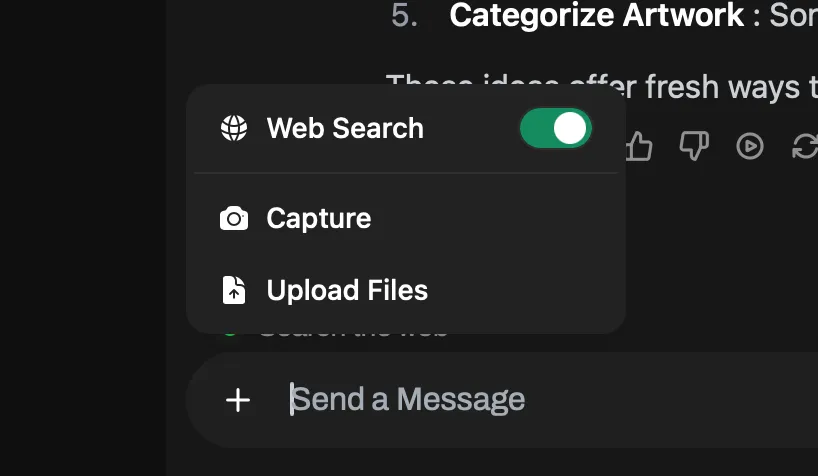
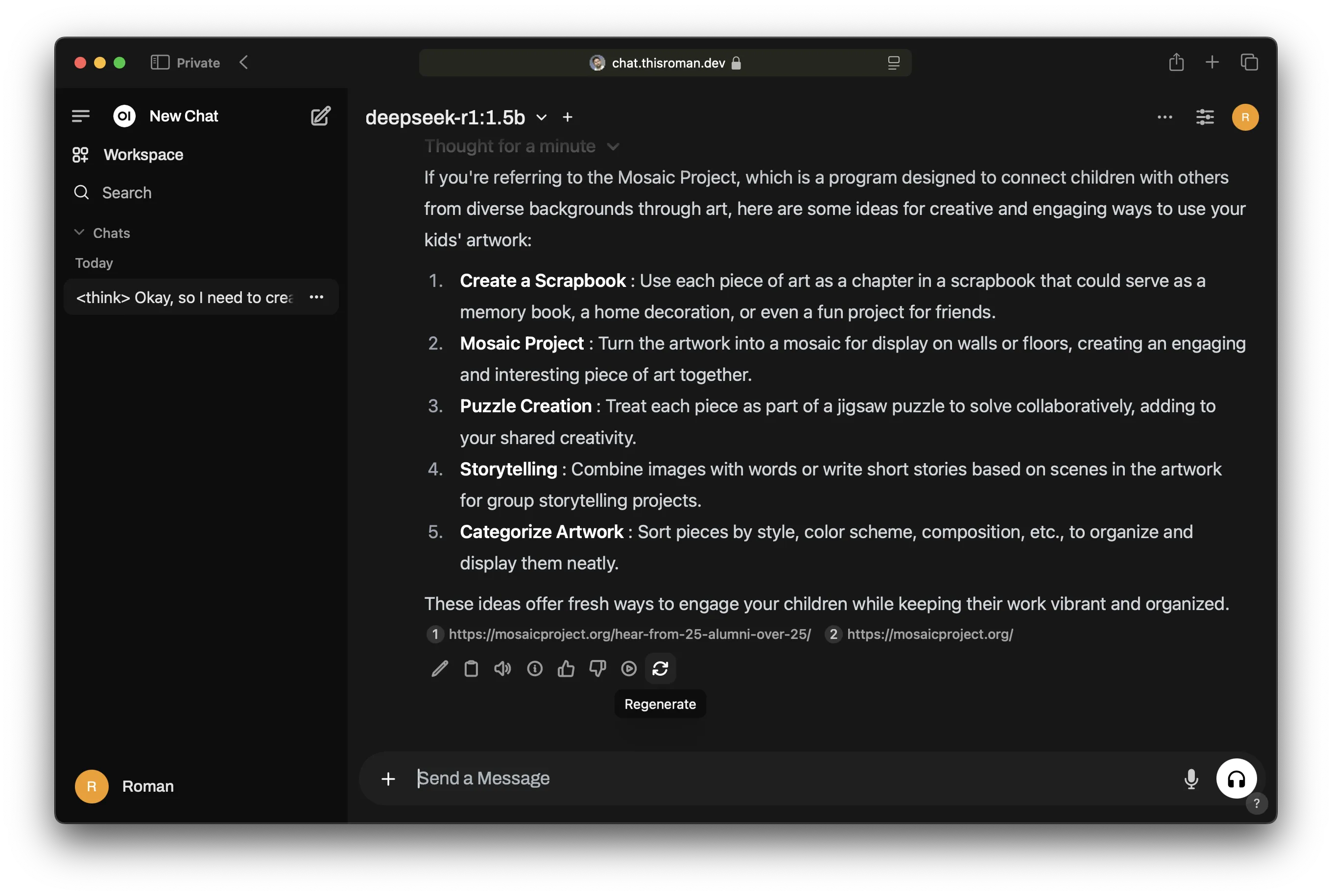
<p>You can also utilize a web searching. Try to click on a plus icon and activate Web Search.</p>

<p><img src="/assets/posts/2025-01-30-deepseek-on-ur-local-host-right-now/pic6.webp" alt="image" class="modal" /></p>

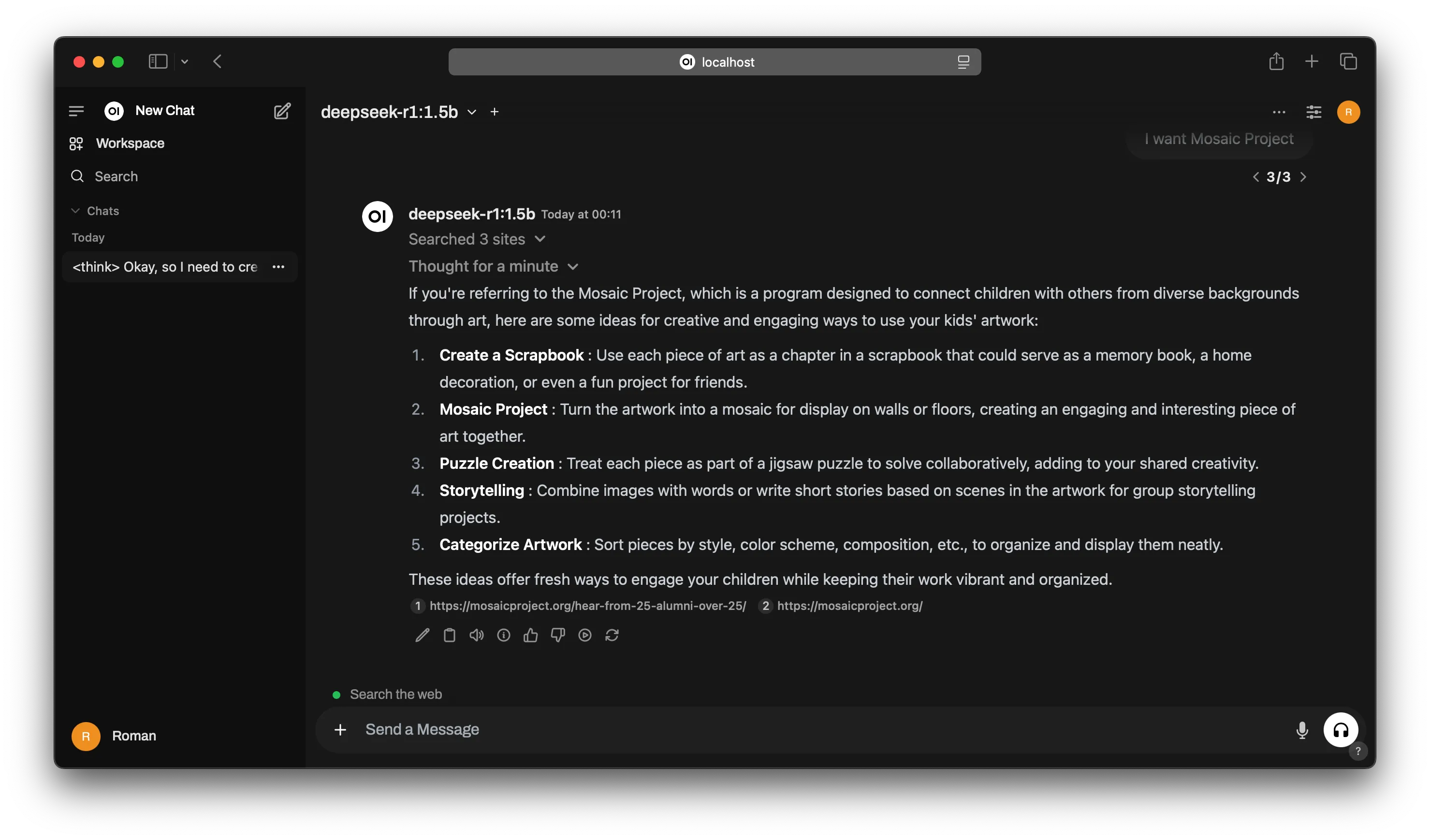
<p>In theory, your request is addressed to the web and an answer incudes links to sources.</p>

<p><img src="/assets/posts/2025-01-30-deepseek-on-ur-local-host-right-now/pic7.webp" alt="image" class="modal" /></p>

<h2 id="cloudflared">Cloudflared</h2>

<p>And as I promised at he beginning, we’ll exposed UI to Web.</p>

<p>I use <code class="language-plaintext highlighter-rouge">cloudflared</code> dockerized service. We need to create a tunnel at Cloudflare Zero Trust Dashboard <a href="https://one.dash.cloudflare.com/f6e7e8d4215d6d614dd0840c9670ff4c/networks/tunnels">https://one.dash.cloudflare.com</a>.</p>

<p>Networks → Tunnels → + Create a tunnel → Select Cloudflared → Name your tunnel → Select Docker option.</p>

<p>I recommend to modify the command that provided automatically by the following manner:</p>

<div class="language-bash highlighter-rouge"><div class="highlight"><pre class="highlight"><code>docker run <span class="nt">-d</span> <span class="nt">--network</span> host <span class="nt">--name</span> cloudflared cloudflare/cloudflared:latest tunnel run <span class="nt">--token</span> eyJhIjoiZjZlN2<span class="k">*************************</span>
</code></pre></div></div>

<p>I added <code class="language-plaintext highlighter-rouge">--network host</code> to see every application at the host. If we leave without that option, the cloudflared doesn’t see because webui and ollama are in their network.</p>

<p>Alternatively, you can create some common network and attach it to every container (and it’ll be more securely than this example).</p>

<p>And I added <code class="language-plaintext highlighter-rouge">--name cloudflared</code> for more convenient naming because a randomized one by default.</p>

<p>And <code class="language-plaintext highlighter-rouge">-d</code> for detached mode.</p>

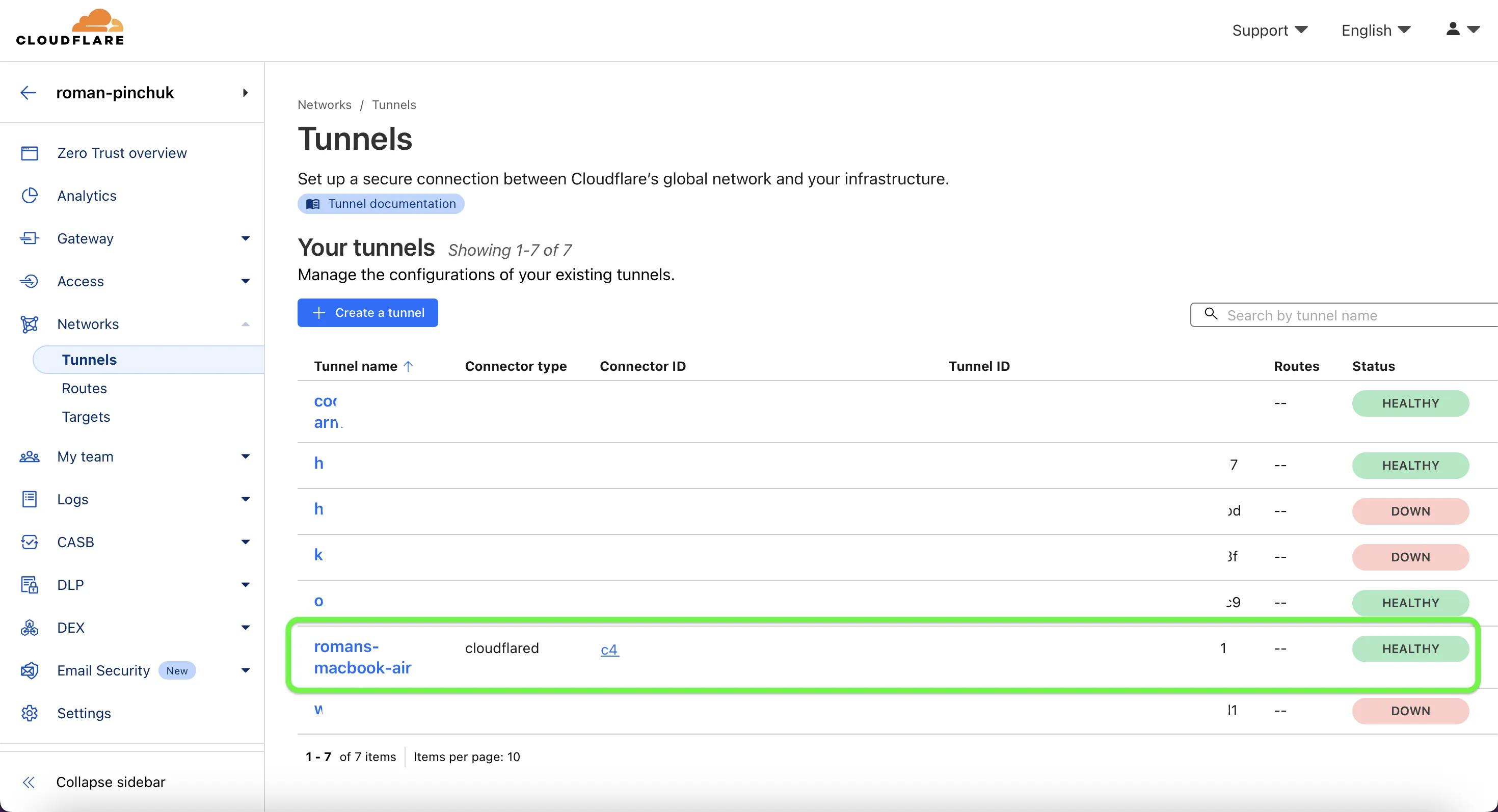
<p>After running the container, need to check if the tunnel is in online at the dashboard.</p>

<p><img src="/assets/posts/2025-01-30-deepseek-on-ur-local-host-right-now/pic8.webp" alt="image" class="modal" /></p>

<p>And a final step is Public Hostname adding. Click on the tunnel → Edit → Public Hostname → + Add a public hostname → Select a Domain (required) → Type some subdomain if your main domain is occupied (in my case it is <code class="language-plaintext highlighter-rouge">chat</code>) → Service/Type <code class="language-plaintext highlighter-rouge">HTTP</code> → URL <code class="language-plaintext highlighter-rouge">localhost:3000</code></p>

<p>After that, try to open <code class="language-plaintext highlighter-rouge">chat.your.domain</code> and see the same Open WebUI from your local host.</p>

<p><img src="/assets/posts/2025-01-30-deepseek-on-ur-local-host-right-now/pic9.webp" alt="image" class="modal" /></p>

<p>Thank you for your reading and stay tuned 🫡</p>]]></content><author><name>Roman Pinchuk</name><email>hi@thisroman.dev</email><uri>https://thisroman.dev</uri></author><category term="self-hosted" /><category term="ai" /><summary type="html"><![CDATA[run deepseek r1 on local host and expose it to the web]]></summary></entry><entry><title type="html">Process vs Thread in Python</title><link href="https://thisroman.dev/2024/12/15/process-vs-thread-in-python/" rel="alternate" type="text/html" title="Process vs Thread in Python" /><published>2024-12-15T00:00:00+00:00</published><updated>2024-12-15T00:00:00+00:00</updated><id>https://thisroman.dev/2024/12/15/process-vs-thread-in-python</id><content type="html" xml:base="https://thisroman.dev/2024/12/15/process-vs-thread-in-python/"><![CDATA[<p><img src="/assets/posts/2024-12-15-process-vs-thread-in-python/pic1.webp" alt="image" class="modal" /></p>

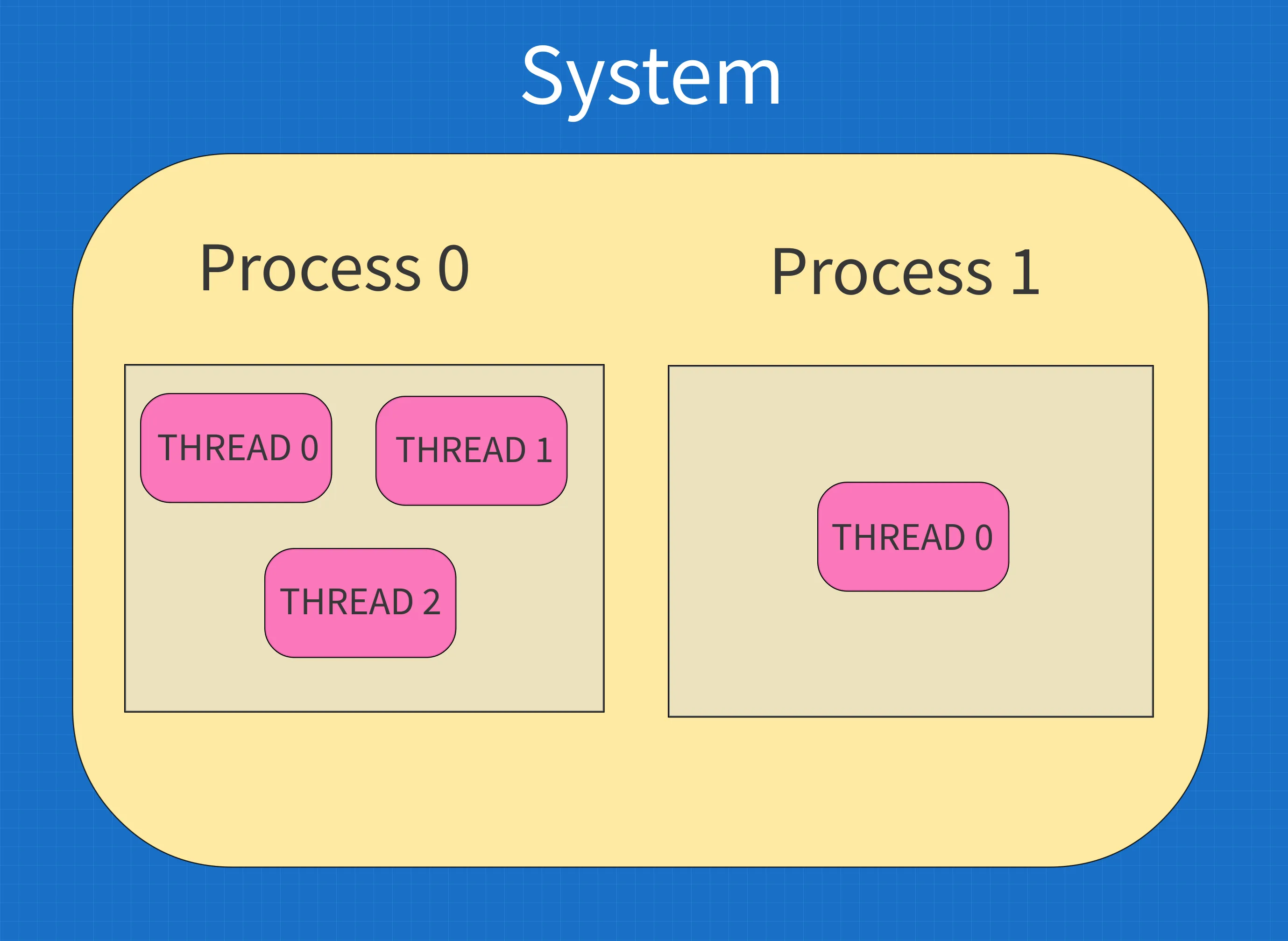
<p>Hi there,
I posted some time ago, and now I’m continuing because it helps keep important things organized and makes it easier to review and remember information.</p>

<p>I want to dive into the topic of processes and threads in Python because an HR representative asked me about it, and I wasn’t prepared to answer…</p>

<p><strong>What’s differences between thread and process in Python?</strong></p>

<h2 id="definition">Definition</h2>

<ul>
  <li><strong>Process</strong>: <em>A process is an independent execution unit that contains its own memory space. Each Python program runs in its own process, and processes are managed by the operating system.</em></li>
  <li><strong>Thread</strong>: <em>A thread is a smaller unit of execution that runs within the context of a process. All threads within a process share the same memory space.</em></li>
</ul>

<h2 id="memory">Memory</h2>

<ul>
  <li><strong>Process</strong>: Processes do not share memory by default. Each process has its own memory space, and inter-process communication (IPC) is required to exchange data between processes (e.g., using pipes, sockets, or shared memory).</li>
  <li><strong>Thread</strong>: Threads within the same process share the same memory space, which makes communication between threads easier but increases the risk of race conditions and other synchronization issues.</li>
</ul>

<h2 id="concurrency">Concurrency</h2>

<ul>
  <li><strong>Process</strong>: Python’s <strong>multiprocessing</strong> module can create multiple processes, bypassing the <strong>Global Interpreter Lock (GIL)</strong>, allowing true parallel execution of Python code on multi-core CPUs.</li>
  <li><strong>Thread</strong>: Python’s <strong>threading</strong> module creates threads within a single process. However, due to the GIL, only one thread executes Python bytecode at a time in CPython. Threads are better suited for I/O-bound tasks rather than CPU-bound tasks.</li>
</ul>

<h2 id="performance">Performance</h2>

<ul>
  <li><strong>Process</strong>: Suitable for CPU-bound tasks because processes can run on multiple CPU cores in parallel, effectively bypassing the GIL.</li>
  <li><strong>Thread</strong>: Suitable for I/O-bound tasks, such as reading/writing files, network requests, or database queries, since threads can efficiently wait for I/O operations to complete.</li>
</ul>

<h2 id="overheads">Overheads</h2>

<ul>
  <li><strong>Process</strong>: Processes have higher overhead because creating a process involves duplicating the memory space and context.</li>
  <li><strong>Thread</strong>: Threads have lower overhead because they share the memory space of the process.</li>
</ul>

<h2 id="crash-isolation">Crash Isolation</h2>

<ul>
  <li><strong>Process</strong>: A crash in one process does not affect other processes.</li>
  <li><strong>Thread</strong>: A crash in one thread can bring down the entire process.</li>
</ul>

<h2 id="use-cases">Use Cases</h2>

<ul>
  <li><strong>Process</strong>:
   CPU-intensive tasks (e.g., data processing, machine learning).
   Tasks requiring isolated memory spaces.</li>
  <li><strong>Thread</strong>:
    Tasks that benefit from shared memory and faster communication within a process.
    I/O-bound tasks (e.g., web scraping, handling web requests).</li>
</ul>

<h2 id="summary-table">Summary Table</h2>

<table>
  <thead>
    <tr>
      <th><strong>Feature</strong></th>
      <th><strong>Process</strong></th>
      <th><strong>Thread</strong></th>
    </tr>
  </thead>
  <tbody>
    <tr>
      <td>Memory</td>
      <td>Separate memory space</td>
      <td>Shared memory space</td>
    </tr>
    <tr>
      <td>GIL Constraint</td>
      <td>No</td>
      <td>Yes (in CPython)</td>
    </tr>
    <tr>
      <td>Overhead</td>
      <td>High</td>
      <td>Low</td>
    </tr>
    <tr>
      <td>Communication</td>
      <td>Via IPC mechanisms</td>
      <td>Shared memory</td>
    </tr>
    <tr>
      <td>Crash Isolation</td>
      <td>Isolated</td>
      <td>Shared</td>
    </tr>
    <tr>
      <td>Best for</td>
      <td>CPU-bound tasks</td>
      <td>I/O-bound tasks</td>
    </tr>
  </tbody>
</table>]]></content><author><name>Roman Pinchuk</name><email>hi@thisroman.dev</email><uri>https://thisroman.dev</uri></author><category term="interview" /><category term="python" /><summary type="html"><![CDATA[lets find out what is it]]></summary></entry><entry><title type="html">Have your own GitHub-like service!</title><link href="https://thisroman.dev/2023/05/29/gitea-selfhosted-github/" rel="alternate" type="text/html" title="Have your own GitHub-like service!" /><published>2023-05-29T00:00:00+00:00</published><updated>2023-05-29T00:00:00+00:00</updated><id>https://thisroman.dev/2023/05/29/gitea-selfhosted-github</id><content type="html" xml:base="https://thisroman.dev/2023/05/29/gitea-selfhosted-github/"><![CDATA[<p><img src="/assets/posts/2023-05-29-gitea-selfhosted-github/git-scheme.webp" alt="image" class="modal" /></p>

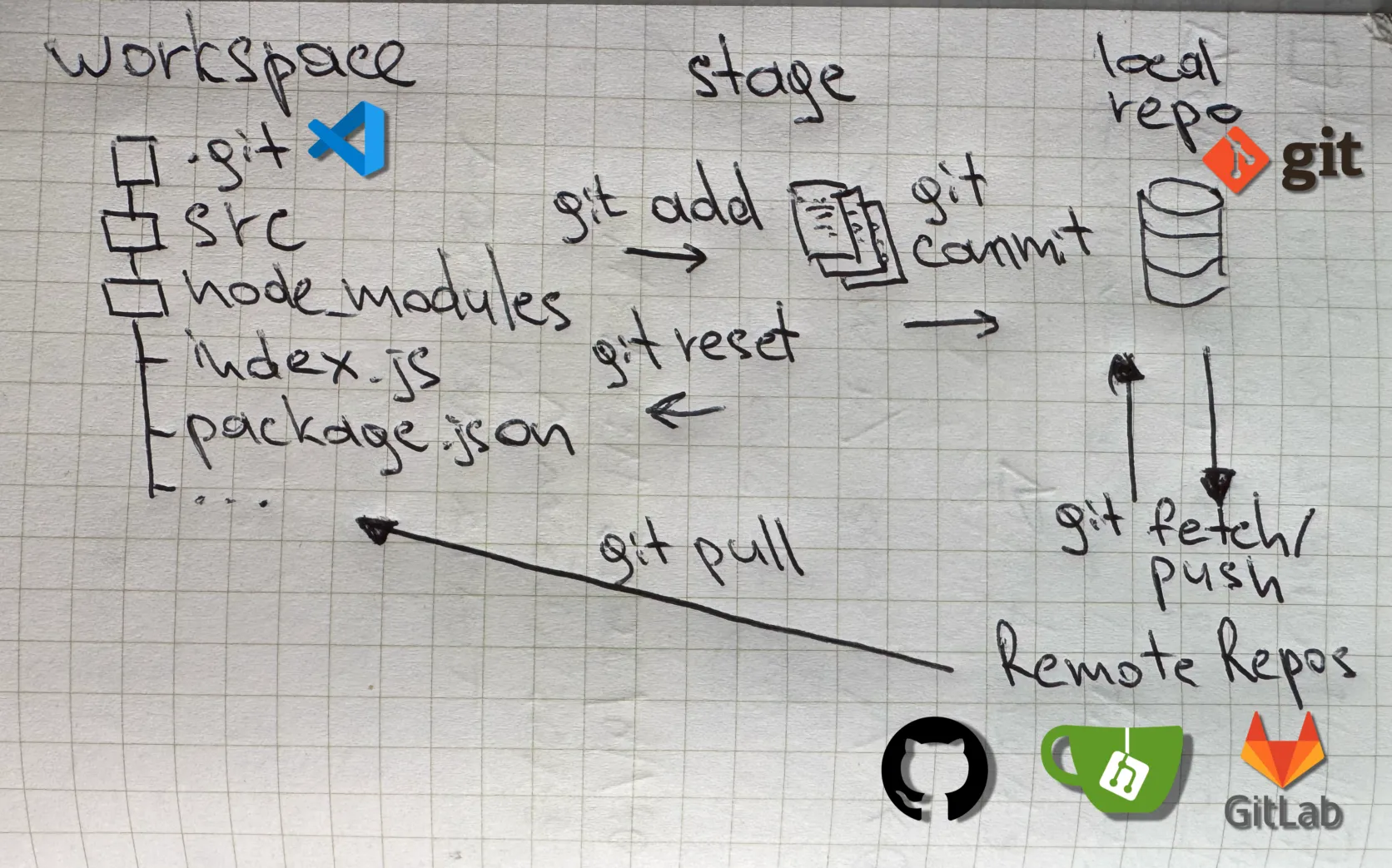
<p>Today I’ll show how to deploy your own Cloud Git Repository Service. This article is from Self-Hosted Services series which perfect fits for your home lab :)</p>

<p>When you’re working on software development, it’s important to manage your source code efficiently and keep track of changes. Source code management (SCM) systems are tools that help you do this. They provide a way for you and your team to work together on projects of any size, no matter how many people are involved. There have been different SCM software options over the years, like CVS, SubVersion, Perforce, and Mercurial. But the most popular one now is Git, which is used with sites like GitHub, Bitbucket and GitLab.</p>

<p>The problem is that free accounts on these sites are mostly for open-source projects. If you want to work on private or proprietary software, there can be costs involved. Plus, you have to rely on an external organization for access to your code, which may not be ideal.</p>

<p>To solve these issues, there are self-hosted solutions you can use, like Gogs, Gitea, and GitLab. In this tutorial, we’ll focus on setting up Gitea, which is one of the more popular options. It allows you to host private repositories and manage your own projects from start to finish. Gitea is easy to deploy because it’s small, self-contained, and doesn’t need a lot of hardware. We’ll be using a Docker installation of Gitea, which helps keep the software up to date.</p>

<p>Prerequisites:</p>

<ul>
  <li>VDS (Hosting) or your local machine with outgoing access (Static Public IP required)</li>
  <li>Docker CE (with Docker Compose Plugin) on target server machine</li>
  <li>Domain Name (Optional)</li>
</ul>

<h2 id="prepare">Prepare Server OS:</h2>

<p>Gitea, similar to other source code repositories, utilizes SSH for remote repository access. This feature enables users to have control over their code by managing their SSH keys directly within Gitea. However, to enable users to access the host machine via SSH, it is necessary to create a git user on the host. This initial step is essential as it allows you to obtain the user and group ID required for accessing the user’s account.</p>

<p>First of all, need to create the user on the host:</p>

<div class="language-nix highlighter-rouge"><div class="highlight"><pre class="highlight"><code><span class="nv">sudo</span> <span class="nv">adduser</span> <span class="o">--</span><span class="nv">system</span> <span class="o">--</span><span class="nv">shell</span> <span class="sx">/bin/bash</span> <span class="o">--</span><span class="nv">gecos</span> <span class="err">'</span><span class="nv">Git</span><span class="err">'</span> <span class="o">--</span><span class="nv">group</span> <span class="o">--</span><span class="nv">disabled-password</span> <span class="o">--</span><span class="nv">home</span> <span class="sx">/home/git</span> <span class="nv">git</span>
</code></pre></div></div>

<p>Output looks like that:</p>

<p><img src="/assets/posts/2023-05-29-gitea-selfhosted-github/Untitled2.png" alt="image" class="modal" /></p>

<aside>
⚠️ Note: (UID 117) and (GID 123) values will be used in a future

</aside>

<h2 id="create-docker-composeyml-for-gitea">Create docker-compose.yml for Gitea:</h2>

<p>Let’s create folder for our config:</p>

<div class="language-nix highlighter-rouge"><div class="highlight"><pre class="highlight"><code><span class="nv">mkdir</span> <span class="sx">~/gitea</span>
<span class="nv">cd</span> <span class="sx">~/gitea</span>
</code></pre></div></div>

<p>After that we need create our config:</p>

<div class="language-nix highlighter-rouge"><div class="highlight"><pre class="highlight"><code><span class="nv">sudo</span> <span class="nv">vi</span> <span class="nv">docker-compose</span><span class="o">.</span><span class="nv">yml</span>
</code></pre></div></div>

<p>Copy that into the new config:</p>

<div class="language-yaml highlighter-rouge"><div class="highlight"><pre class="highlight"><code><span class="na">version</span><span class="pi">:</span> <span class="s1">'</span><span class="s">3'</span>

<span class="na">networks</span><span class="pi">:</span>
  <span class="na">gitea</span><span class="pi">:</span>
    <span class="na">external</span><span class="pi">:</span> <span class="kc">false</span>

<span class="na">services</span><span class="pi">:</span>
  <span class="na">server</span><span class="pi">:</span>
    <span class="c1"># Specify here which image should be used</span>
    <span class="na">image</span><span class="pi">:</span> <span class="s">gitea/gitea:latest</span>
    <span class="na">container_name</span><span class="pi">:</span> <span class="s">gitea</span>
    <span class="na">environment</span><span class="pi">:</span>
      <span class="pi">-</span> <span class="s">USER_GID=[GID value from Prepare Server OS]</span>
      <span class="pi">-</span> <span class="s">USER_UID=[UID value from Prepare Server OS]</span>
    <span class="na">restart</span><span class="pi">:</span> <span class="s">always</span>
    <span class="na">networks</span><span class="pi">:</span>
      <span class="pi">-</span> <span class="s">gitea</span>
    <span class="na">volumes</span><span class="pi">:</span>
      <span class="pi">-</span> <span class="s">./gitea:/data</span>
      <span class="pi">-</span> <span class="s">/home/git/.ssh/:/data/git/.ssh</span>
      <span class="pi">-</span> <span class="s">/etc/timezone:/etc/timezone:ro</span>
      <span class="pi">-</span> <span class="s">/etc/localtime:/etc/localtime:ro</span>
    <span class="na">ports</span><span class="pi">:</span>
      <span class="pi">-</span> <span class="s1">'</span><span class="s">127.0.0.1:3000:3000'</span>
      <span class="pi">-</span> <span class="s1">'</span><span class="s">127.0.0.1:2222:22'</span>
</code></pre></div></div>

<p>Save the config by <code class="language-plaintext highlighter-rouge">:wq</code></p>

<p>Afterwards in terminal type the following command:</p>

<div class="language-nix highlighter-rouge"><div class="highlight"><pre class="highlight"><code><span class="nv">docker-compose</span> <span class="nv">up</span>
</code></pre></div></div>

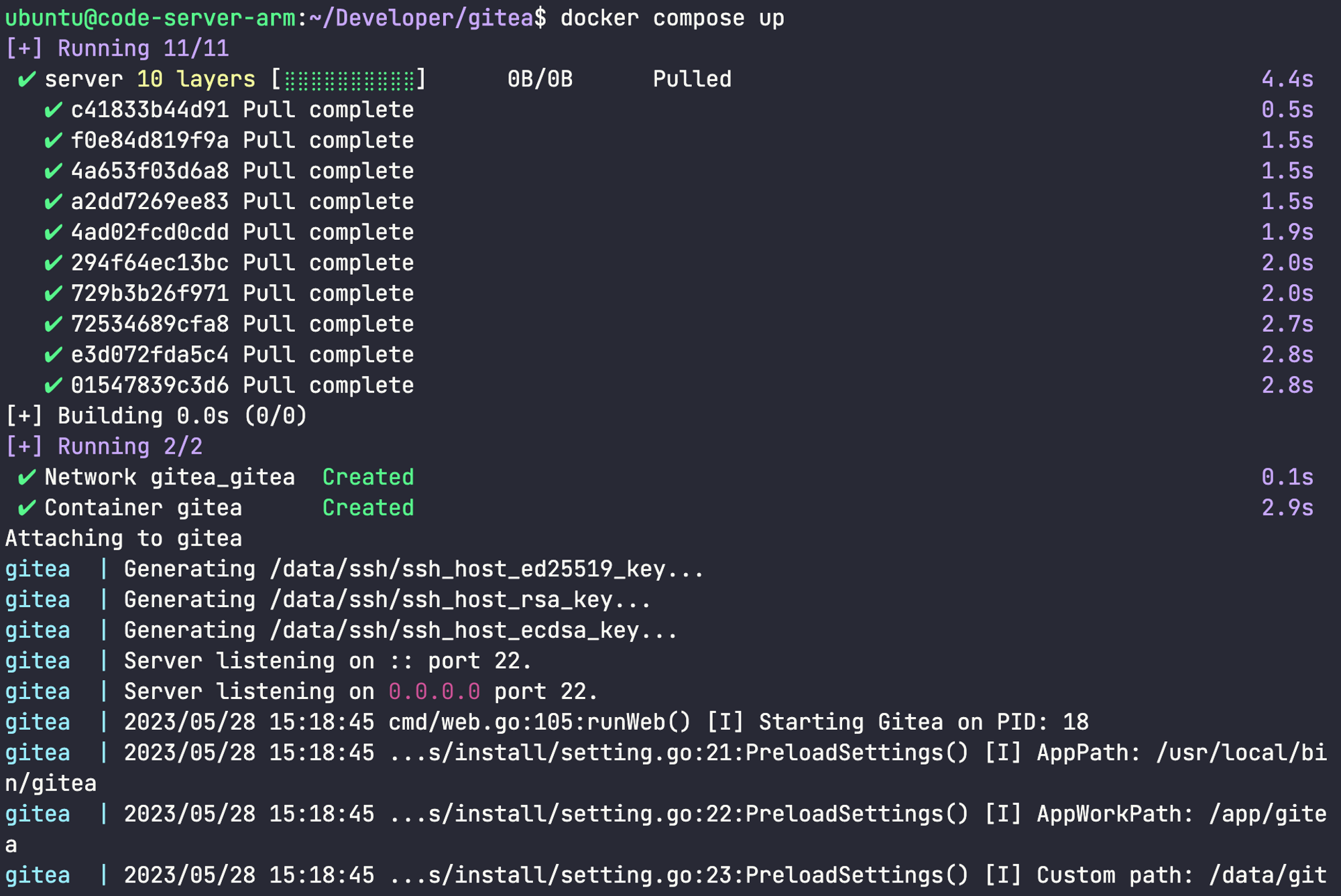
<p>Output looks like that:</p>

<p><img src="/assets/posts/2023-05-29-gitea-selfhosted-github/image.png" alt="image" class="modal" /></p>

<p>In order to run container as detached you should use the following command instead previous:</p>

<div class="language-nix highlighter-rouge"><div class="highlight"><pre class="highlight"><code><span class="nv">docker</span> <span class="nv">compose</span> <span class="o">-</span><span class="nv">d</span>
</code></pre></div></div>

<p>You’ll see running container:</p>

<div class="language-nix highlighter-rouge"><div class="highlight"><pre class="highlight"><code><span class="nv">ubuntu</span><span class="o">@</span><span class="nv">code-server-arm</span><span class="p">:</span><span class="err">~</span><span class="p">$</span> <span class="nv">docker</span> <span class="nv">ps</span>
<span class="nv">CONTAINER</span> <span class="nv">ID</span>   <span class="nv">IMAGE</span>                <span class="nv">COMMAND</span>                  <span class="nv">CREATED</span>      <span class="nv">STATUS</span>       <span class="nv">PORTS</span>                                              <span class="nv">NAMES</span>
<span class="mi">66</span><span class="nv">cf622e21d5</span>   <span class="sx">gitea/gitea</span><span class="p">:</span><span class="nv">latest</span>   <span class="s2">"/usr/bin/entrypoint…"</span>   <span class="mi">2</span> <span class="nv">days</span> <span class="nv">ago</span>   <span class="nv">Up</span> <span class="mi">2</span> <span class="nv">hours</span>   <span class="mi">127</span><span class="o">.</span><span class="mi">0</span><span class="o">.</span><span class="mi">0</span><span class="o">.</span><span class="mi">1</span><span class="p">:</span><span class="mi">3000</span><span class="o">-&gt;</span><span class="mi">3000</span><span class="sx">/tcp</span><span class="p">,</span> <span class="mi">127</span><span class="o">.</span><span class="mi">0</span><span class="o">.</span><span class="mi">0</span><span class="o">.</span><span class="mi">1</span><span class="p">:</span><span class="mi">2222</span><span class="o">-&gt;</span><span class="mi">22</span><span class="sx">/tcp</span>   <span class="nv">gitea</span>
<span class="nv">ubuntu</span><span class="o">@</span><span class="nv">code-server-arm</span><span class="p">:</span><span class="err">~</span><span class="p">$</span>
</code></pre></div></div>

<p>Usually, I check availability of a fresh one running service by <code class="language-plaintext highlighter-rouge">curl</code> like this:</p>

<div class="language-nix highlighter-rouge"><div class="highlight"><pre class="highlight"><code><span class="nv">ubuntu</span><span class="o">@</span><span class="nv">code-server-arm</span><span class="p">:</span><span class="err">~</span><span class="p">$</span> <span class="nv">curl</span> <span class="nv">localhost</span><span class="p">:</span><span class="mi">3000</span>
<span class="o">&lt;!</span><span class="nv">DOCTYPE</span> <span class="nv">html</span><span class="o">&gt;</span>
<span class="o">&lt;</span><span class="nv">html</span> <span class="nv">lang</span><span class="o">=</span><span class="s2">"en-US"</span> <span class="nv">class</span><span class="o">=</span><span class="s2">"theme-auto"</span><span class="o">&gt;</span>
<span class="o">&lt;</span><span class="nv">head</span><span class="o">&gt;</span>
        <span class="o">&lt;</span><span class="nv">meta</span> <span class="nv">charset</span><span class="o">=</span><span class="s2">"utf-8"</span><span class="o">&gt;</span>
        <span class="o">&lt;</span><span class="nv">meta</span> <span class="nv">name</span><span class="o">=</span><span class="s2">"viewport"</span> <span class="nv">content</span><span class="o">=</span><span class="s2">"width=device-width, initial-scale=1"</span><span class="o">&gt;</span>
        <span class="o">&lt;</span><span class="nv">title</span><span class="o">&gt;</span><span class="nv">Gitea</span><span class="p">:</span> <span class="nv">thisroman</span><span class="o">.</span><span class="nv">dev</span><span class="o">&lt;</span><span class="sx">/title</span><span class="o">&gt;</span>
        <span class="o">&lt;</span><span class="nv">link</span> <span class="nv">rel</span><span class="o">=</span><span class="s2">"manifest"</span> <span class="nv">href</span><span class="o">=</span><span class="s2">"data:application/json;base64,eyJuYW1lIjoiR2l0ZWE6IHRoaXNyb21hbi5kZXYiLCJzaG9ydF9uYW1lIjoiR2l0ZWE6IHRoaXNyb21hbi5kZXYiLCJzdGFydF91cmwiOiJodHRwczovL2dpdC50aGlzcm9tYW4uZGV2LyIsImljb25zIjpbeyJzcmMiOiJodHRwczovL2dpdC50aGlzcm9tYW4uZGV2L2Fzc2V0cy9pbWcvbG9nby5wbmciLCJ0eXBlIjoiaW1hZ2UvcG5nIiwic2l6ZXMiOiI1MTJ4NTEyIn0seyJzcmMiOiJodHRwczovL2dpdC50aGlzcm9tYW4uZGV2L2Fzc2V0cy9pbWcvbG9nby5zdmciLCJ0eXBlIjoiaW1hZ2Uvc3ZnK3htbCIsInNpemVzIjoiNTEyeDUxMiJ9XX0="</span><span class="o">&gt;</span>

        <span class="o">&lt;</span><span class="nv">meta</span> <span class="nv">name</span><span class="o">=</span><span class="s2">"default-theme"</span> <span class="nv">content</span><span class="o">=</span><span class="s2">"auto"</span><span class="o">&gt;</span>
        <span class="o">&lt;</span><span class="nv">meta</span> <span class="nv">name</span><span class="o">=</span><span class="s2">"author"</span> <span class="nv">content</span><span class="o">=</span><span class="s2">"Gitea - Git with a cup of tea"</span><span class="o">&gt;</span>
        <span class="o">&lt;</span><span class="nv">meta</span> <span class="nv">name</span><span class="o">=</span><span class="s2">"description"</span> <span class="nv">content</span><span class="o">=</span><span class="s2">"Gitea (Git with a cup of tea) is a painless self-hosted Git service written in Go"</span><span class="o">&gt;</span>
        <span class="o">&lt;</span><span class="nv">meta</span> <span class="nv">name</span><span class="o">=</span><span class="s2">"keywords"</span> <span class="nv">content</span><span class="o">=</span><span class="s2">"go,git,self-hosted,gitea"</span><span class="o">&gt;</span>
        <span class="o">&lt;</span><span class="nv">meta</span> <span class="nv">name</span><span class="o">=</span><span class="s2">"referrer"</span> <span class="nv">content</span><span class="o">=</span><span class="s2">"no-referrer"</span><span class="o">&gt;</span>


        <span class="o">&lt;</span><span class="nv">link</span> <span class="nv">rel</span><span class="o">=</span><span class="s2">"icon"</span> <span class="nv">href</span><span class="o">=</span><span class="s2">"/assets/img/favicon.svg"</span> <span class="nv">type</span><span class="o">=</span><span class="s2">"image/svg+xml"</span><span class="o">&gt;</span>
        <span class="o">&lt;</span><span class="nv">link</span> <span class="nv">rel</span><span class="o">=</span><span class="s2">"alternate icon"</span> <span class="nv">href</span><span class="o">=</span><span class="s2">"/assets/img/favicon.png"</span> <span class="nv">type</span><span class="o">=</span><span class="s2">"image/png"</span><span class="o">&gt;</span>
        <span class="o">&lt;</span><span class="nv">link</span> <span class="nv">rel</span><span class="o">=</span><span class="s2">"stylesheet"</span> <span class="nv">href</span><span class="o">=</span><span class="s2">"/assets/css/index.css?v=1.19.3"</span><span class="o">&gt;</span>

<span class="o">&lt;</span><span class="nv">script</span><span class="o">&gt;</span>
        <span class="nv">window</span><span class="o">.</span><span class="nv">addEventListener</span><span class="p">(</span><span class="err">'</span><span class="nv">error</span><span class="err">'</span><span class="p">,</span> <span class="nv">function</span><span class="p">(</span><span class="nv">e</span><span class="p">)</span> <span class="p">{</span><span class="nv">window</span><span class="o">.</span><span class="nv">_globalHandlerErrors</span><span class="o">=</span><span class="nv">window</span><span class="o">.</span><span class="nv">_globalHandlerErrors</span><span class="o">||</span><span class="p">[];</span> <span class="nv">window</span><span class="o">.</span><span class="nv">_globalHandlerErrors</span><span class="o">.</span><span class="nv">push</span><span class="p">(</span><span class="nv">e</span><span class="p">);});</span>
        <span class="nv">window</span><span class="o">.</span><span class="nv">config</span> <span class="o">=</span> <span class="p">{</span>
                <span class="nv">appUrl</span><span class="p">:</span> <span class="err">'</span><span class="nv">https</span><span class="p">:</span><span class="err">\</span><span class="o">/</span><span class="err">\</span><span class="sx">/git.thisroman.dev</span><span class="err">\</span><span class="o">/</span><span class="err">'</span><span class="p">,</span>
                <span class="nv">appSubUrl</span><span class="p">:</span> <span class="s2">'',</span><span class="err">
</span></code></pre></div></div>

<p>Navigate to http(s)://YOUR_DOMAIN OR STATIC_PUBLIC_IP (OR localhost:3000).</p>

<p>Here it is!</p>

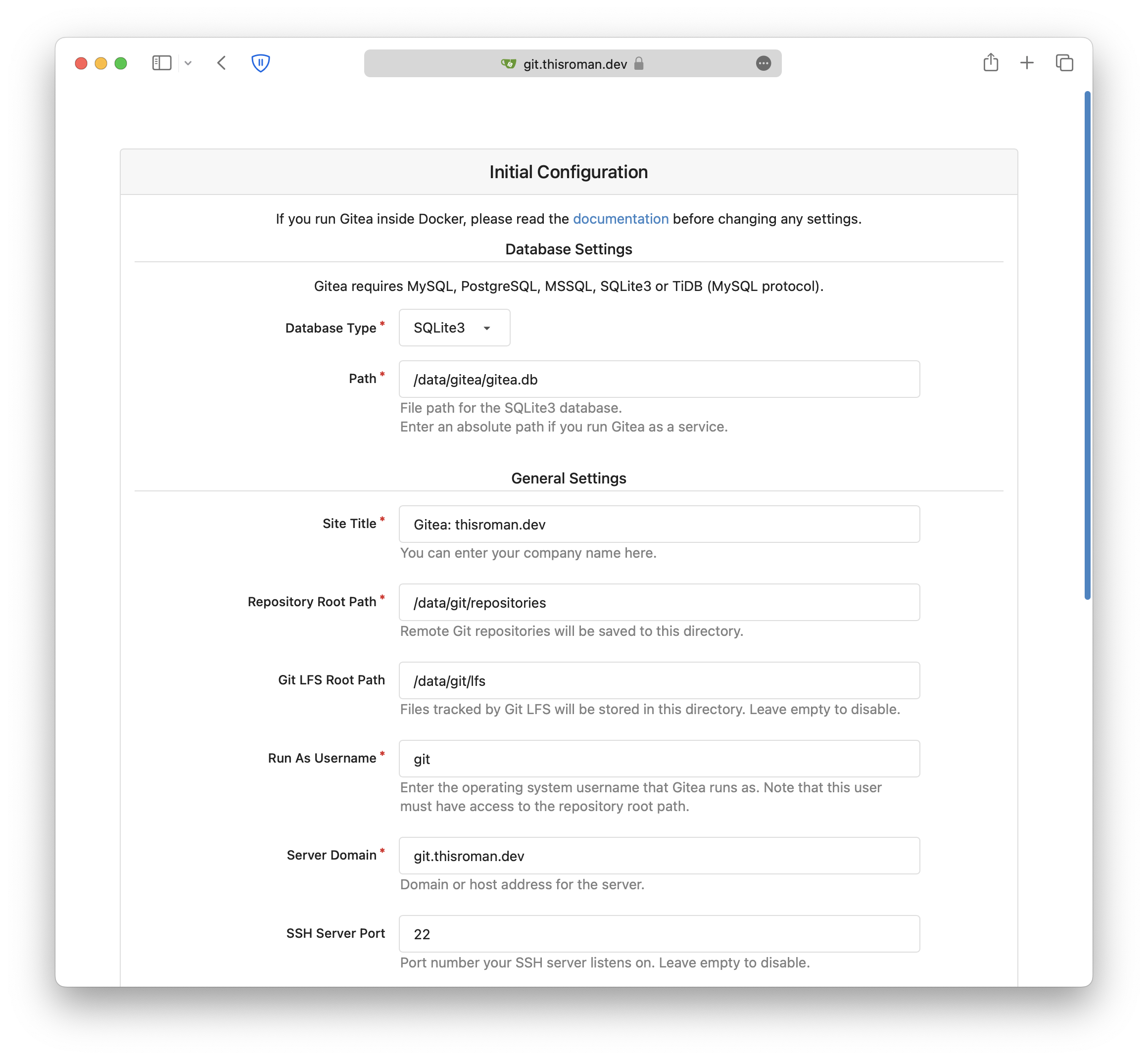
<p>After that, have to setting your Reverse Proxy Service (I’ll post about that soon and attach link) and you’ll see a first configuration page like that:</p>

<p><img src="/assets/posts/2023-05-29-gitea-selfhosted-github/Untitled.png" alt="image" class="modal" /></p>

<aside>
⚠️ Note: The first created user is an admin!
</aside>

<p>Certain settings, such as the site title, can be customized according to your specific needs. However, for the purpose of this tutorial, you will need to modify the following:</p>

<ul>
  <li>Server domain: This refers to the domain of your server, which you set up in Step 3.</li>
  <li>Gitea Base URL: This is the complete URL you will use to access Gitea in your web browser, including the protocol. For instance, it should resemble “https://your_domain”.</li>
</ul>

<p>To get started, you’ll need to create a user account if you haven’t done so already. Simply click the <code class="language-plaintext highlighter-rouge">"Need an account?"</code> -&gt; <code class="language-plaintext highlighter-rouge">"Register now"</code> link located below the login form to register a new user. Since you’ll be the first user on the system, your account will be created as an administrator. Keep in mind that if you’ve configured email settings during the setup, you might need to verify your account before proceeding.</p>

<p>Once you’re logged in as the newly created user, you can access additional administrative features by clicking on your user icon at the top right corner of the page. From the drop-down menu, select <code class="language-plaintext highlighter-rouge">"Site Administration"</code> which will take you to a page where you can perform maintenance tasks, manage user accounts and organizations, and further customize Gitea according to your needs.</p>

<h2 id="configuring-sshing-shim">Configuring SSHing Shim</h2>

<p>You have to create SSH key for our earlier created user. This key needed only for internal use:</p>

<div class="language-nix highlighter-rouge"><div class="highlight"><pre class="highlight"><code><span class="nv">sudo</span> <span class="o">-</span><span class="nv">u</span> <span class="nv">git</span> <span class="nv">ssh-keygen</span> <span class="o">-</span><span class="nv">t</span> <span class="nv">rsa</span> <span class="o">-</span><span class="nv">b</span> <span class="mi">4096</span> <span class="o">-</span><span class="nv">C</span> <span class="s2">"Gitea"</span>
</code></pre></div></div>

<p>Output should looks like:</p>

<div class="language-nix highlighter-rouge"><div class="highlight"><pre class="highlight"><code><span class="nv">ubuntu</span><span class="o">@</span><span class="nv">code-server-arm</span><span class="p">:</span><span class="sx">~/Developer/gitea</span><span class="p">$</span> <span class="nv">sudo</span> <span class="o">-</span><span class="nv">u</span> <span class="nv">git</span> <span class="nv">ssh-keygen</span> <span class="o">-</span><span class="nv">t</span> <span class="nv">rsa</span> <span class="o">-</span><span class="nv">b</span> <span class="mi">4096</span> <span class="o">-</span><span class="nv">C</span> <span class="s2">"Gitea Host Key"</span>
<span class="nv">Generating</span> <span class="sx">public/private</span> <span class="nv">rsa</span> <span class="nv">key</span> <span class="nv">pair</span><span class="o">.</span>
<span class="nv">Enter</span> <span class="nv">file</span> <span class="kn">in</span> <span class="nv">which</span> <span class="nv">to</span> <span class="nv">save</span> <span class="nv">the</span> <span class="nv">key</span> <span class="p">(</span><span class="sx">/home/git/.ssh/id_rsa</span><span class="p">):</span>
<span class="nv">Enter</span> <span class="nv">passphrase</span> <span class="p">(</span><span class="nv">empty</span> <span class="nv">for</span> <span class="nv">no</span> <span class="nv">passphrase</span><span class="p">):</span>
<span class="nv">Enter</span> <span class="nv">same</span> <span class="nv">passphrase</span> <span class="nv">again</span><span class="p">:</span>
<span class="nv">Your</span> <span class="nv">identification</span> <span class="nv">has</span> <span class="nv">been</span> <span class="nv">saved</span> <span class="kn">in</span> <span class="sx">/home/git/.ssh/id_rsa</span>
<span class="nv">Your</span> <span class="nv">public</span> <span class="nv">key</span> <span class="nv">has</span> <span class="nv">been</span> <span class="nv">saved</span> <span class="kn">in</span> <span class="sx">/home/git/.ssh/id_rsa.pub</span>
<span class="nv">The</span> <span class="nv">key</span> <span class="nv">fingerprint</span> <span class="nv">is</span><span class="p">:</span>
<span class="nv">SHA256</span><span class="p">:</span><span class="nv">J0bEn</span><span class="o">***************************</span><span class="nv">lPLljA</span> <span class="nv">Gitea</span> <span class="nv">Host</span> <span class="nv">Key</span>
<span class="nv">The</span> <span class="nv">key</span><span class="err">'</span><span class="nv">s</span> <span class="nv">randomart</span> <span class="nv">image</span> <span class="nv">is</span><span class="p">:</span>
<span class="o">+---</span><span class="p">[</span><span class="nv">RSA</span> <span class="mi">4096</span><span class="p">]</span><span class="o">----+</span>
<span class="err">|</span><span class="o">**********</span>       <span class="err">|</span>
<span class="err">|</span><span class="o">****.....</span>        <span class="err">|</span>
<span class="err">|</span><span class="nv">o</span> <span class="o">**********</span>     <span class="err">|</span>
<span class="err">|</span><span class="o">**************</span>   <span class="err">|</span>
<span class="err">|</span><span class="nv">o</span><span class="o">.</span><span class="nv">O</span> <span class="nv">o</span> <span class="o">..</span><span class="nv">S</span> <span class="o">.</span> <span class="o">=</span> <span class="nv">o</span>  <span class="err">|</span>
<span class="err">|</span><span class="o">+.</span> <span class="o">+******</span> <span class="o">=</span> <span class="o">=</span>   <span class="err">|</span>
<span class="err">|</span><span class="o">.</span><span class="nv">oo</span>   <span class="o">.</span>   <span class="nv">o</span> <span class="o">+</span>    <span class="err">|</span>
<span class="err">|</span><span class="o">********</span> <span class="o">.</span>       <span class="err">|</span>
<span class="err">|</span><span class="nv">oo</span><span class="o">.</span>     <span class="o">.</span>        <span class="err">|</span>
<span class="o">+----</span><span class="p">[</span><span class="nv">SHA256</span><span class="p">]</span><span class="o">-----+</span>
</code></pre></div></div>

<p>I recommend to push <code class="language-plaintext highlighter-rouge">Enter</code> on each step and don’t set a password (shim doesn’t work w/ password)</p>

<p>Then, need to add our Gitea user to <code class="language-plaintext highlighter-rouge">authorized_keys</code>:</p>

<div class="language-nix highlighter-rouge"><div class="highlight"><pre class="highlight"><code><span class="nv">sudo</span> <span class="o">-</span><span class="nv">u</span> <span class="nv">git</span> <span class="nv">cat</span> <span class="sx">/home/git/.ssh/id_rsa.pub</span> <span class="err">|</span> <span class="nv">sudo</span> <span class="o">-</span><span class="nv">u</span> <span class="nv">git</span> <span class="nv">tee</span> <span class="o">-</span><span class="nv">a</span> <span class="sx">/home/git/.ssh/authorized_keys</span>
<span class="nv">sudo</span> <span class="o">-</span><span class="nv">u</span> <span class="nv">git</span> <span class="nv">chmod</span> <span class="mi">600</span> <span class="sx">/home/git/.ssh/authorized_keys</span>
</code></pre></div></div>

<p>So, finally, we need to do some automation:</p>

<div class="language-nix highlighter-rouge"><div class="highlight"><pre class="highlight"><code><span class="nv">ubuntu</span><span class="o">@</span><span class="nv">code-server-arm</span><span class="p">:</span><span class="sx">~/Developer/gitea</span><span class="p">$</span> <span class="nv">cat</span> <span class="o">&lt;&lt;</span><span class="s2">"EOF"</span> <span class="err">|</span> <span class="nv">sudo</span> <span class="nv">tee</span> <span class="sx">/usr/local/bin/gitea</span>
<span class="o">&gt;</span> <span class="c">#!/bin/sh</span>
<span class="o">&gt;</span> <span class="nv">ssh</span> <span class="o">-</span><span class="nv">p</span> <span class="mi">2222</span> <span class="o">-</span><span class="nv">o</span> <span class="nv">StrictHostKeyChecking</span><span class="o">=</span><span class="nv">no</span> <span class="nv">git</span><span class="o">@</span><span class="mi">127</span><span class="o">.</span><span class="mi">0</span><span class="o">.</span><span class="mi">0</span><span class="o">.</span><span class="mi">1</span> <span class="s2">"SSH_ORIGINAL_COMMAND=</span><span class="se">\"</span><span class="s2">$SSH_ORIGINAL_COMMAND</span><span class="se">\"</span><span class="s2"> $0 $@"</span>
<span class="o">&gt;</span> <span class="nv">EOF</span>
<span class="c">#!/bin/sh</span>
<span class="nv">ssh</span> <span class="o">-</span><span class="nv">p</span> <span class="mi">2222</span> <span class="o">-</span><span class="nv">o</span> <span class="nv">StrictHostKeyChecking</span><span class="o">=</span><span class="nv">no</span> <span class="nv">git</span><span class="o">@</span><span class="mi">127</span><span class="o">.</span><span class="mi">0</span><span class="o">.</span><span class="mi">0</span><span class="o">.</span><span class="mi">1</span> <span class="s2">"SSH_ORIGINAL_COMMAND=</span><span class="se">\"</span><span class="s2">$SSH_ORIGINAL_COMMAND</span><span class="se">\"</span><span class="s2"> $0 $@"</span>
</code></pre></div></div>

<p>Let’s set executable for that script:</p>

<div class="language-nix highlighter-rouge"><div class="highlight"><pre class="highlight"><code><span class="nv">sudo</span> <span class="nv">chmod</span> <span class="o">+</span><span class="nv">x</span> <span class="sx">/usr/local/bin/gitea</span>
</code></pre></div></div>

<p>See official doc for this: <a href="https://docs.gitea.com/installation/install-with-docker#sshing-shim-with-authorized_keys">SSHing Shim (with authorized_keys)</a></p>

<p>Another links to docs:</p>

<ol>
  <li>You can try a demo <a href="https://try.gitea.io" target="\_blank">here</a></li>
  <li>Official Docs locates <a href="https://docs.gitea.com" target="\_blank">here</a></li>
</ol>

<h2 id="summary">Summary</h2>

<p>We used Docker virtualization for deploying Gitea on our own server in minutes and with some settings for user and adding key.
Also, we can customize front look of the Gitea web interface and set up email notification. I wasn’t show this in the article, but I’ll post in the future more stuff like that. Stay tuned 🫡</p>

<h1 id="thanx-for-reading-and-welcome-to-comments">Thanx for reading and welcome to comments!</h1>]]></content><author><name>Roman Pinchuk</name><email>hi@thisroman.dev</email><uri>https://thisroman.dev</uri></author><category term="self-hosted" /><category term="vcs" /><summary type="html"><![CDATA[this article shows how to deploy gitea]]></summary></entry></feed>